Signing in
The /roo address, the staff login, forgotten passwords and where each person lands.
The app lives at /roo on your RooMoverRoo site, for example app.roomoverroo.com/roo. Office staff and the owner sign in there. Clients and crew never need to: their pages open from private links.
Sign in#
- Go to
/roo. Any staff page shows the sign-in screen until you’re signed in. - Enter your Email and Password and choose Sign in.
- The page reloads and you’re in. If you went to
/rooyou land on the Dashboard; if you opened a link to a particular quote or job, you land on that page.
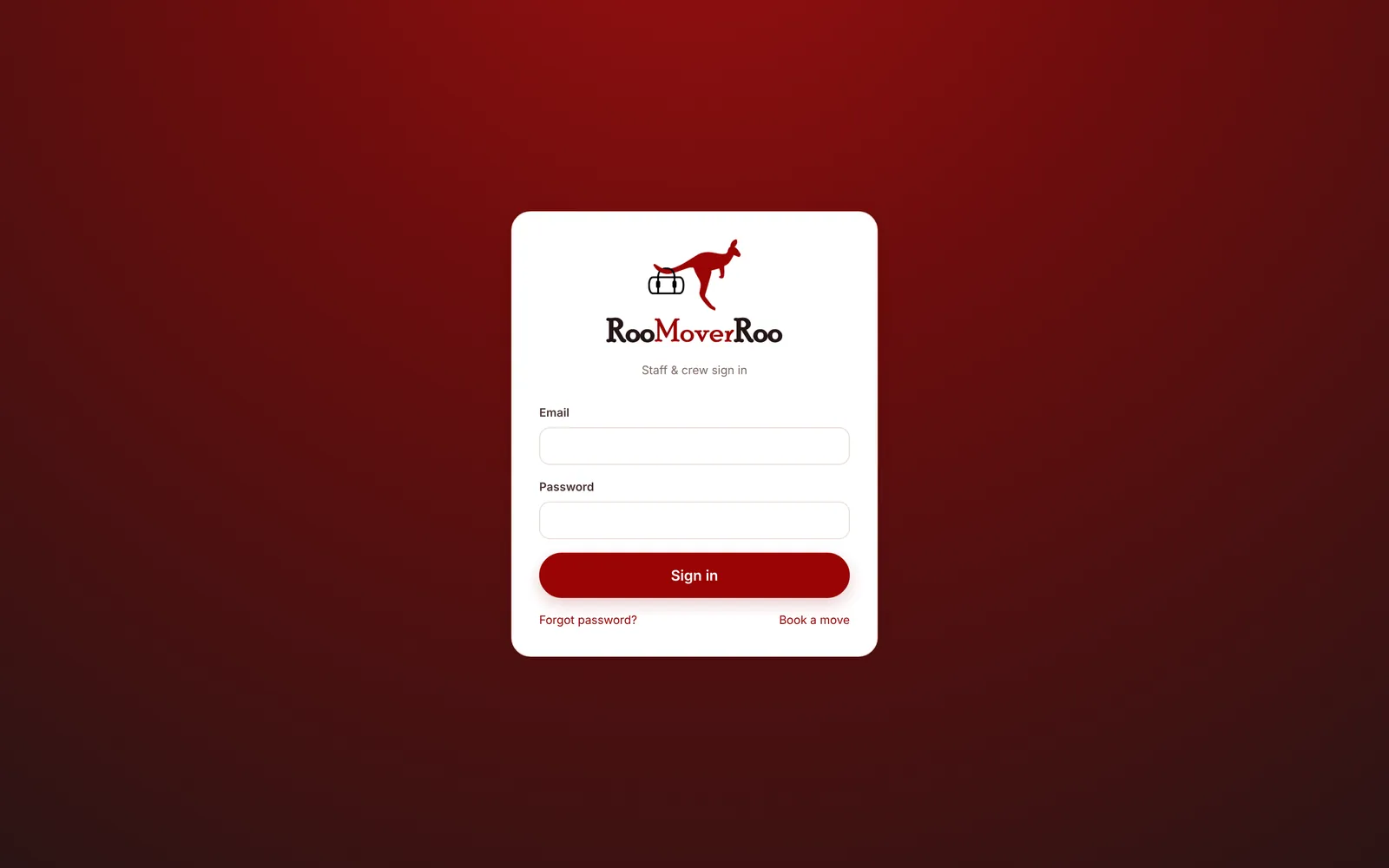
The sign-in screen also has Book a move, which opens the public booking form, handy if a client lands here by mistake.
Forgotten your password#
Choose Forgot password?. It opens Frappe’s password reset at /staff-login#forgot. Enter your email, follow the link in the email you receive, and set a new password. You’ll be taken back to /roo afterwards.
Where everyone lands#
The app is the front door of the whole site. Whichever way someone signs in (the app, Frappe’s login page or a password reset), they end up at /roo. What they see there depends on their role:
| Who | What they see at /roo |
|---|---|
| Roo Admin, Roo Booking, System Manager | The staff console: dashboard, menu and every office screen |
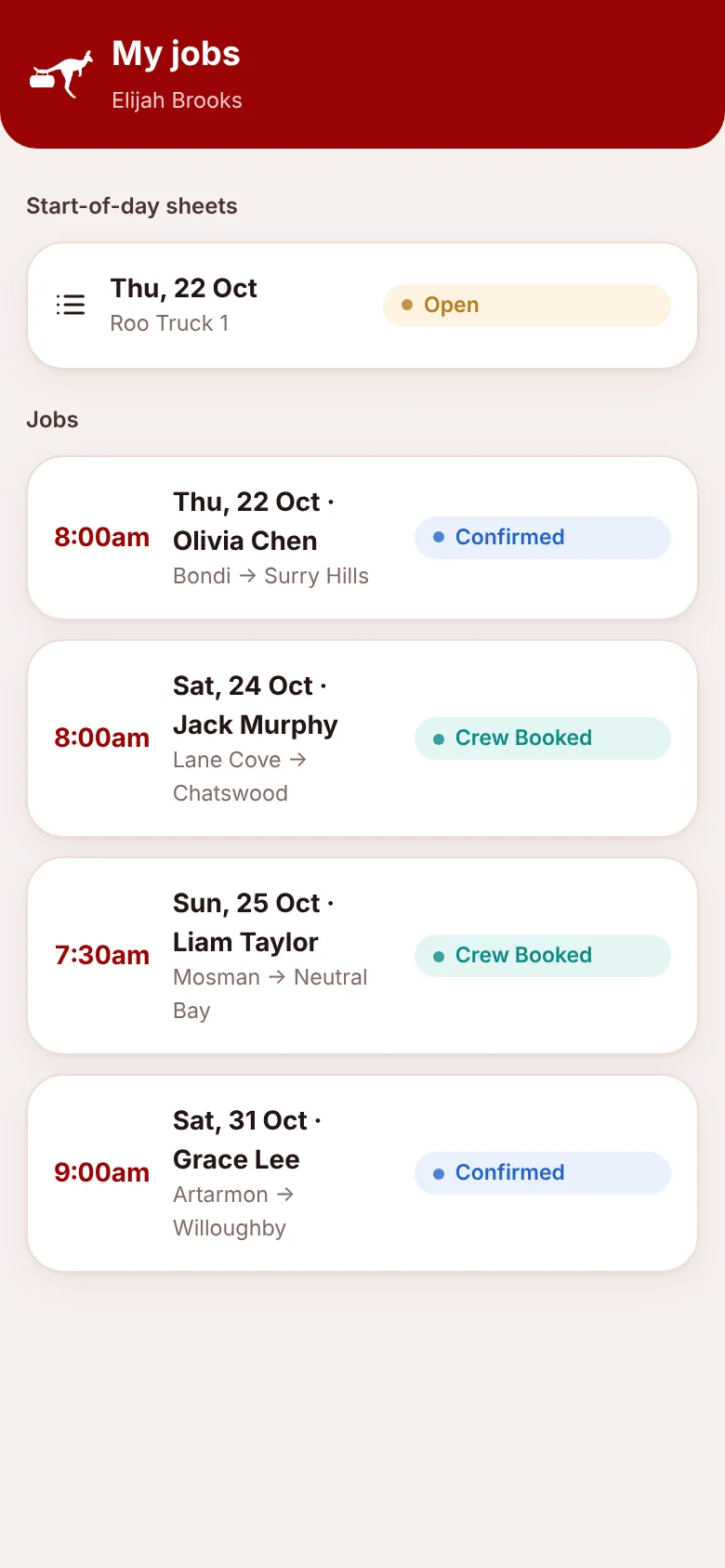
| Roo Crew (with a login) | My jobs: their start-of-day sheets and upcoming jobs |
| Anyone else | “No access”, with a link to book a move |
Addresses that redirect#
To keep people in the right place, these addresses on the site send visitors on automatically:
| You visit | You go to |
|---|---|
/, /index, /home, /login, /me, /apps, /careers | /roo |
/book, /quote | /roo/book (the booking form) |
Frappe Desk#
Nobody needs Frappe Desk to run the business. Administrator and System Manager users can still use it: they sign in at /staff-login (Frappe’s own login page), and inside the app they see a Desk button in the top bar that opens /app. Anyone else who opens /app is sent back to /roo.

Crew don’t need a login#
Each job sheet and each start-of-day sheet has its own private link, emailed to the crew before the move. The link works on any phone without signing in, so agency staff can use it too.
If you’d like a Roo to see all their jobs in one place, give them a user login with the Roo Crew role and link it to their crew record (the User login field on Crew & trucks). When they sign in at /roo they see My jobs: their start-of-day sheets and the jobs they’re on the crew for (from yesterday onwards, once the job has been confirmed), each linking to its sheet.