
Working on a quote
Open a quote to see the price breakdown, send it, convert it to a job or record the call outcome.
Open any quote from the Quotes list to see everything about it: who it’s for, the move, the price breakdown and any payments. From here you can email it, edit it, record a call back, cancel it or turn it into a job.
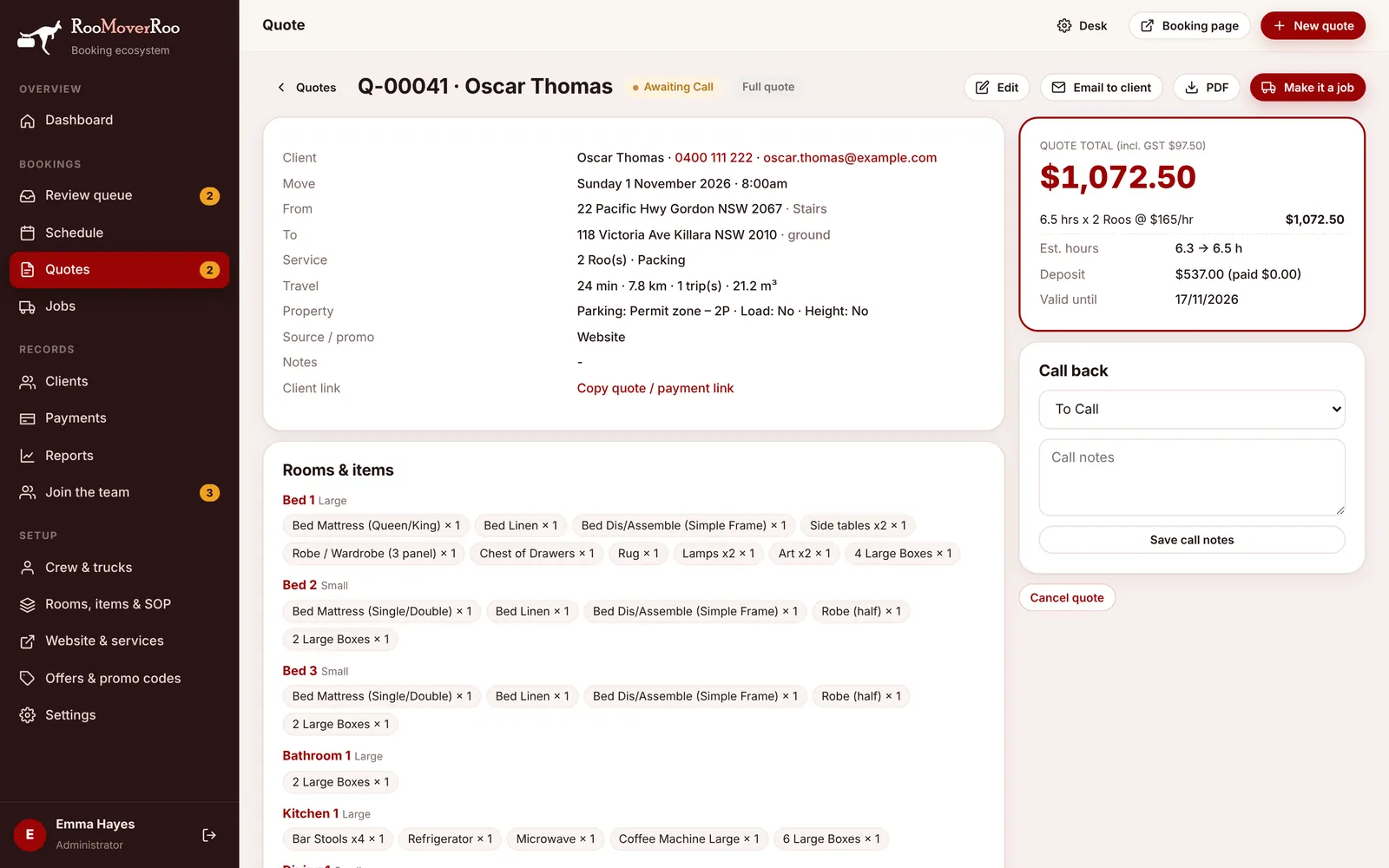
The buttons at the top#
| Button | What it does |
|---|---|
| Edit | Opens the quote in the booking form so you can change rooms, items, addresses or the date. It disappears once the quote is a job, because from then on you change the job instead. |
| Email to client | Emails the client “Your RooMoverRoo quote” with the price, the deposit, a link to view and pay, and the booking sheet as a PDF. |
| Downloads the booking sheet PDF. | |
| Make it a job | Turns the quote into a job without waiting for a deposit. Needs a move date. |
| Open job | Shown instead once the quote has become a job. |
The details#
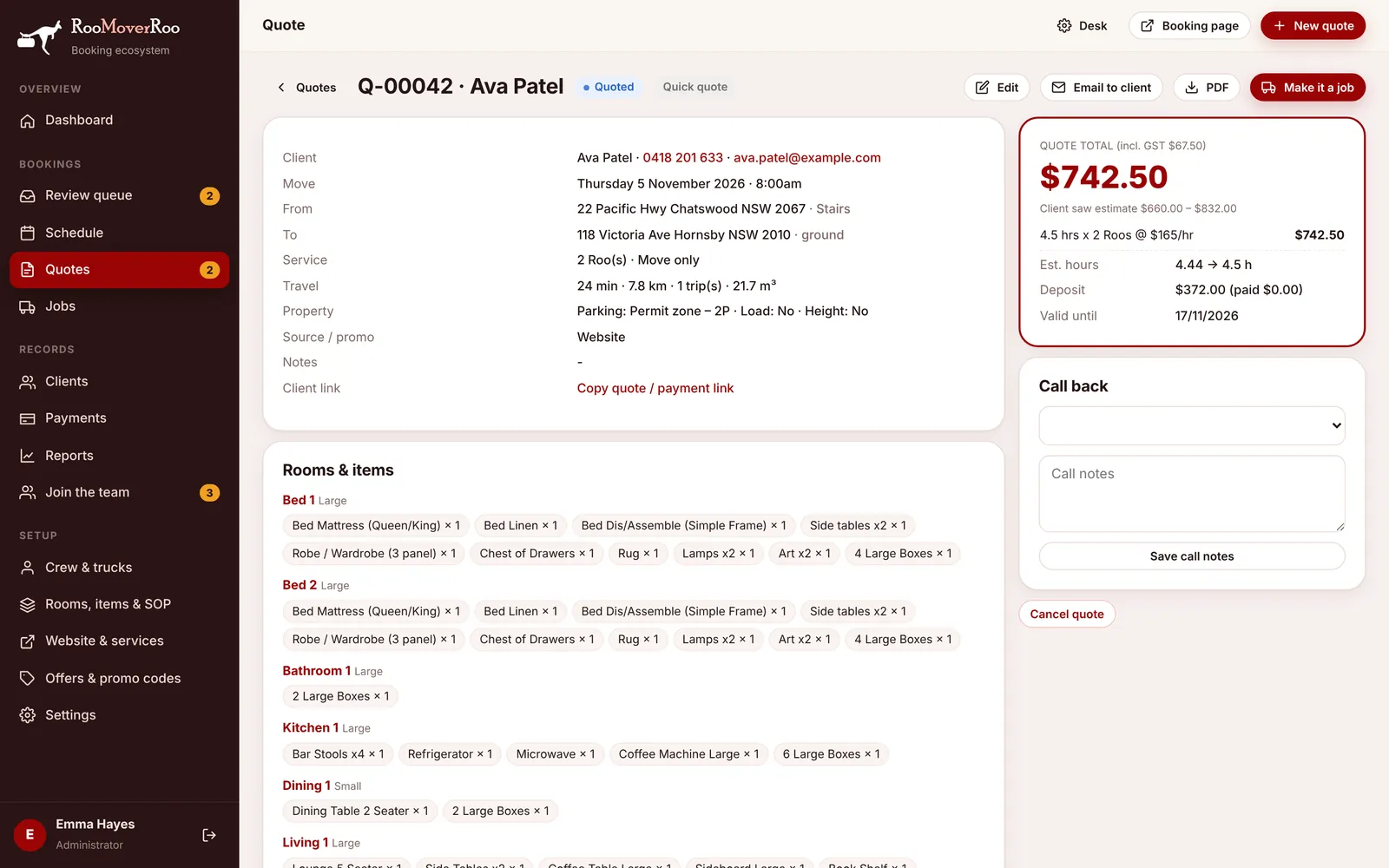
The left side lists the client’s contact details, the move date and start time (with a Bundle day or Short notice pill when it applies), both addresses with stairs or lift access, the service (Roos, plus packing, unpacking or cleaning, or “Move only”), the travel time, distance, truck trips and load volume, property notes such as parking, the source and any promo code. Under that are the Rooms & items, grouped by room with their size.
Copy quote / payment link copies the client’s private quote page link, so you can text or email it to them. On that page they can pay the deposit. See The client’s quote page.
The price#
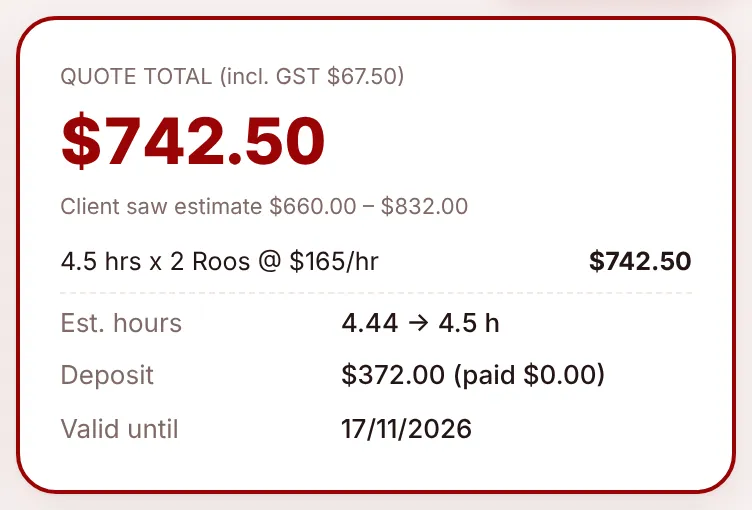
The total card on the right shows the QUOTE TOTAL including GST, each line that makes it up (hours × Roos × rate, cleaning, tolls, bundle-day saving, promo), the estimated hours and the hours they round up to, the deposit and whether it’s been paid, and the date the quote is valid until. Any warnings from the pricing (for example “Travel time is estimated until both addresses are entered”) are shown here too.
For a Quick Quote, the card also shows the range the client saw, for example “Client saw estimate $660.00 – $832.00”.
Common tasks#
Email the quote to the client#
- Check the client’s email address in the details.
- Press Email to client. They receive the quote with the PDF and a View / pay deposit button.
Turn a quote into a job#
Normally this happens by itself when the client pays the deposit. Do it by hand when a client has agreed on the phone and will pay another way.
- Make sure the quote has a move date. Use Edit to add one if not.
- Press Make it a job.
- The app creates the job with the rooms and items, the review and agency deadlines, the truck trips and the SOP checklist, runs the price check and links any payments already made. The quote becomes Converted.
- The new job starts as Pending Review, or Waitlist if its review deadline has already passed. Review it in the Review queue.
Record a call back#
Use the Call back panel: choose a status (To Call, Called – Booked, Called – Thinking, No Answer, Not Interested), add notes and press Save call notes. The notes stay with the quote so anyone in the office can see where things are up to.
Cancel or re-open a quote#
Cancel quote sets the quote to Cancelled. It’s available unless the quote is already cancelled or has become a job. No email is sent. Re-open quote brings a cancelled or expired quote back to Quoted with a fresh validity date (30 days from today by default).