
Schedule and day sheets
The calendar of moves and the start-of-day sheet for each truck.
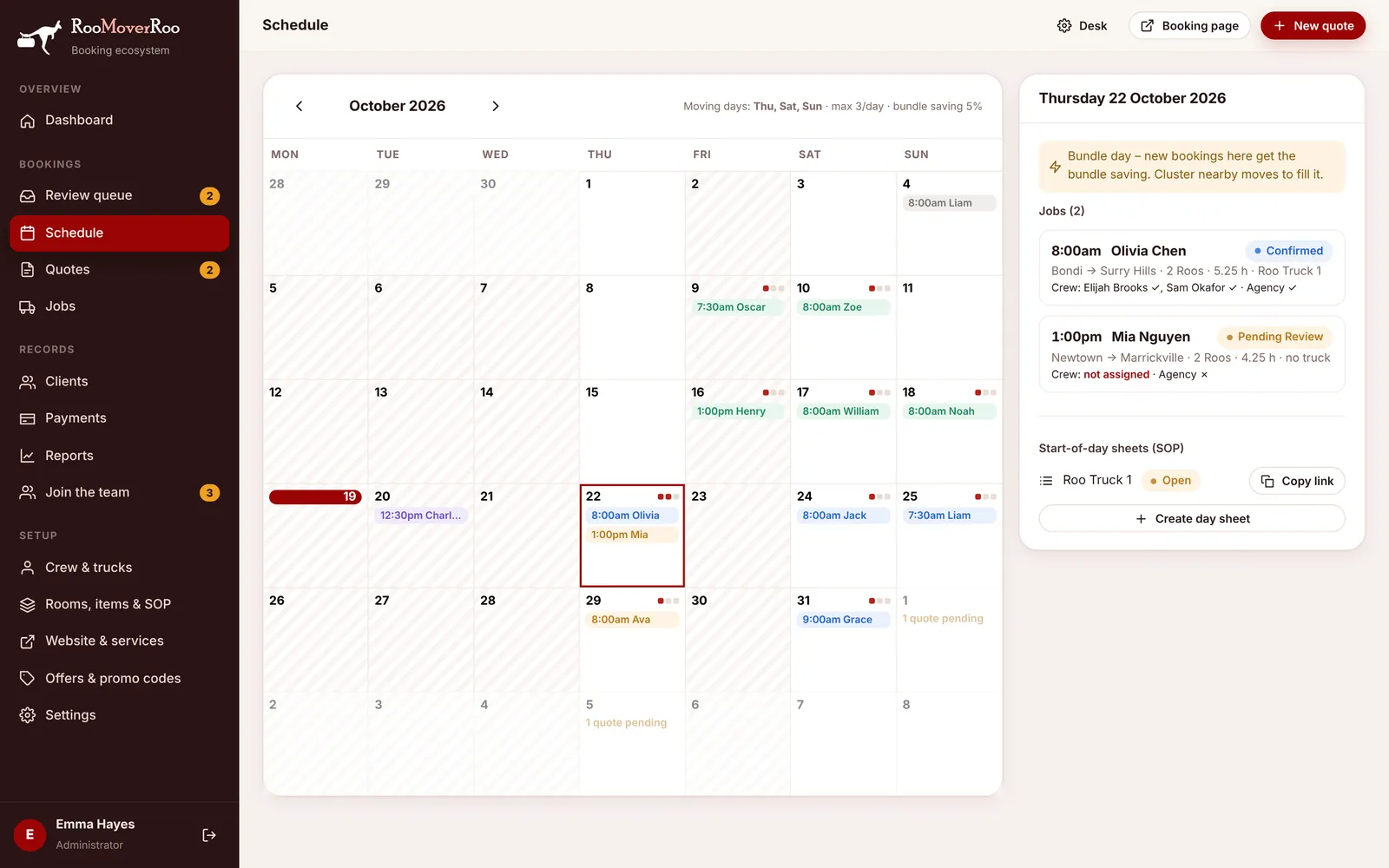
The Schedule at /roo/schedule is a month calendar of every move. Use it to see how full each moving day is, cluster new jobs onto days that already have one, check crew and agency staff for a day, and hand drivers their start-of-day sheet.
Reading the calendar#
The line above the calendar repeats your rules, for example “Moving days: Thu, Sat, Sun · max 3/day · bundle saving 5%”. Use the arrows to change month.
- Hatched days aren’t regular moving days.
- Today is highlighted in red, and the day you’ve selected has a red outline.
- Dots show capacity: one dot for each job a day can take (3 by default), filled in for each active job.
- Job chips show the start time and client’s first name, coloured by status: green for completed, amber for pending review, violet for waitlist, red for in progress, grey for cancelled and blue for the rest. If there are more than three, you’ll see “+ more”.
- “quote pending” counts quotes that have that move date but haven’t booked yet.
The day panel#
Click a day to see it in the panel on the right.
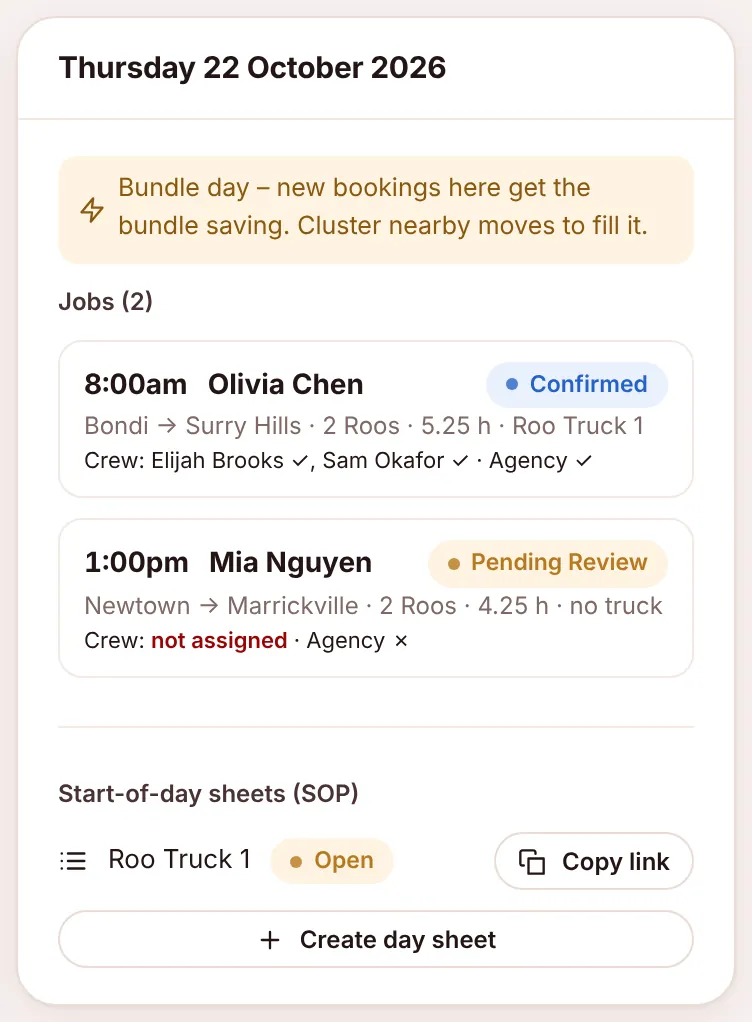
- A Bundle day note appears on future days that already have a job but aren’t full: “Bundle day – new bookings here get the bundle saving. Cluster nearby moves to fill it.” Clients booking that day get the bundle-day discount (5% by default).
- Jobs lists each move with its time, client, status, route, Roos, planned hours and truck. Crew names show a ✓ when they’ve confirmed and ? when they haven’t, or “not assigned”. Agency shows ✓ or ✗. Click a job to open it.
- Pending quotes for this date lists quotes for that day that haven’t booked. They’re worth a follow-up call.
- Start-of-day sheets (SOP) lists the sheet for each truck with its status, Open or Completed.
Start-of-day sheets#
Each truck working on a day has one start-of-day sheet: the checklist the driver works through before the first job. See Start-of-day sheet. The app creates them every day for today and tomorrow. You can create them yourself for any date.
Create and send a day sheet#
- Click the day on the calendar.
- Under Start-of-day sheets (SOP), press Create day sheet. One sheet is made for each truck with jobs that day. Jobs that are cancelled, waitlisted or still pending review are left out.
- Press Copy link next to the truck and send the link to the driver by text or email.