
How RooMoverRoo works
The life of a move, from the first quote to the job record, and who does what along the way.
RooMoverRoo runs a move from the moment a client asks for a price to the moment the final bill is paid and the job is kept on record. Each stage happens on its own screen, and the app moves the job along for you: paying a deposit creates the job, confirming it alerts the client, and pressing FINISH JOB works out the bill and sends it.
 1. QuoteThe client builds a Quick or Full quote online, or staff create one.
 2. BookThey pick a date and pay a deposit, or ask for a call first.
 3. ReviewStaff check the price, access and crew, then confirm.
 4. MoveThe crew works from the job sheet and SOP on their phone.
 5. RecordTimes are rounded down, the bill is sent and the job is kept.
1. The client gets a price#
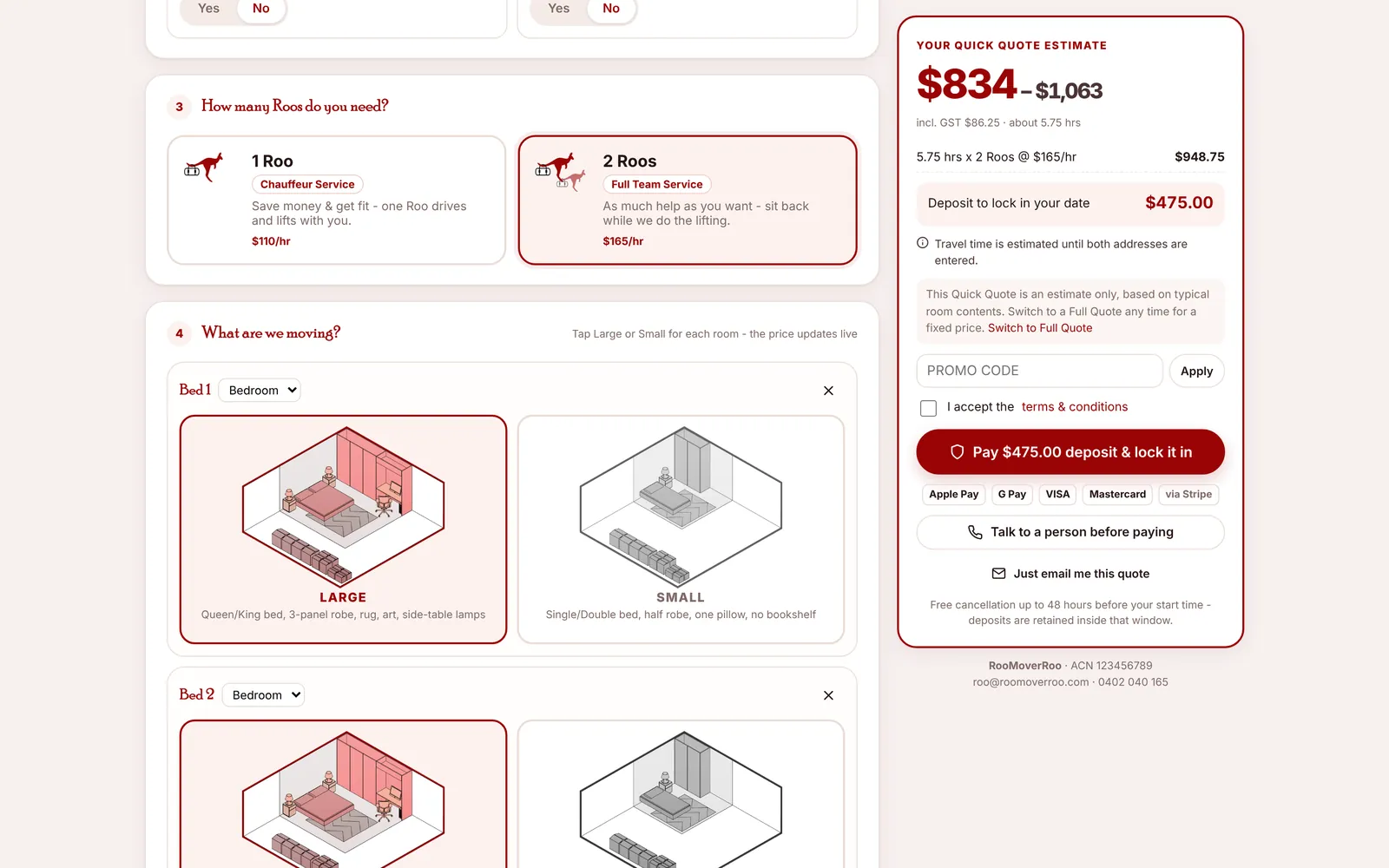
Clients use the booking form at /roo/book (the website’s “Get my price” buttons go there). They choose a Quick Quote, which prices the rooms from typical contents and shows a range, or a Full Quote, which lists the items for a fixed price. The price updates live as they pick rooms, sizes, Roos, help with packing and a date. Staff can fill in the same form for phone and email enquiries from /roo/quotes/new.
2. The client books, or asks for a call#
At the end of the form the client can pay the deposit to lock in their date, ask to talk to a person before paying, or just have the quote emailed. Every choice creates a quote with a number like Q-00045 and a private quote page the client can come back to.
- Pay the deposit: the quote becomes a job straight away, marked Pending Review. The client gets “Booking received” and the office gets “New job to review”.
- Talk to a person first: the quote is marked Awaiting Call and shows up under Call backs on the dashboard.
- Just email me this quote: the quote is Quoted and stays open until it’s paid or it expires (30 days by default).
3. The office reviews the job#
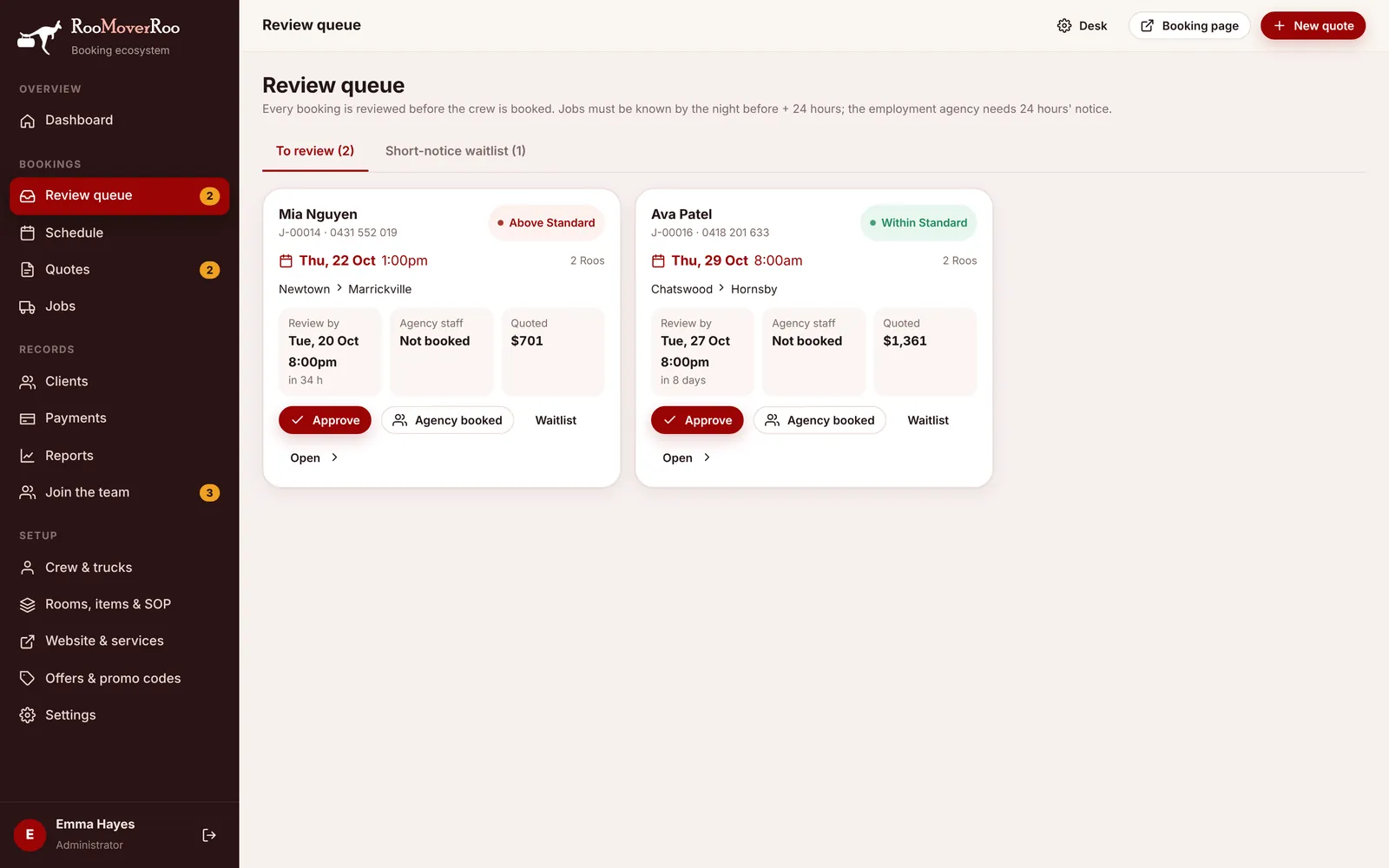
Every new job waits in the Review queue until someone checks it. The app compares the quote with your price standards for that size of home and shows whether it’s within, above or below them. The office confirms the job, books any agency staff (they need 24 hours’ notice), and adds the crew and truck on the job record.
Each job has a review deadline: by default 8 pm two days before the move. A booking that arrives after that goes on the short-notice waitlist as Waitlist instead of being refused, so it can fill a cancellation.
4. The crew do the move#
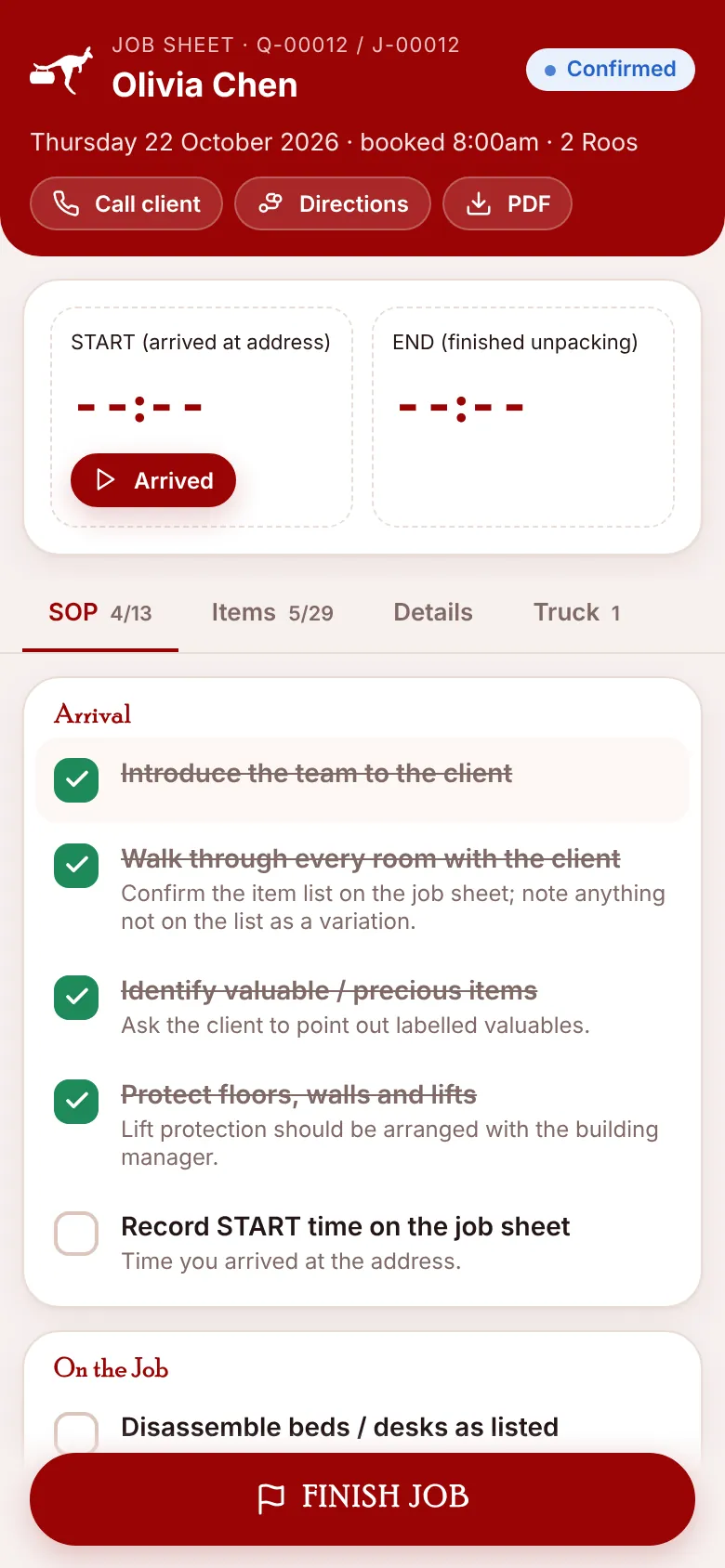
Two days before the move the app emails the crew a link to the job sheet, with a PDF and a calendar file, and reminds the client. On the day the crew open the job sheet on their phones. They tap Arrived, work through the SOP checklist, tick items as they’re loaded, record truck trips, then tap Finished and FINISH JOB. The driver also completes a start-of-day check for the truck.
5. The bill, the payment and the record#
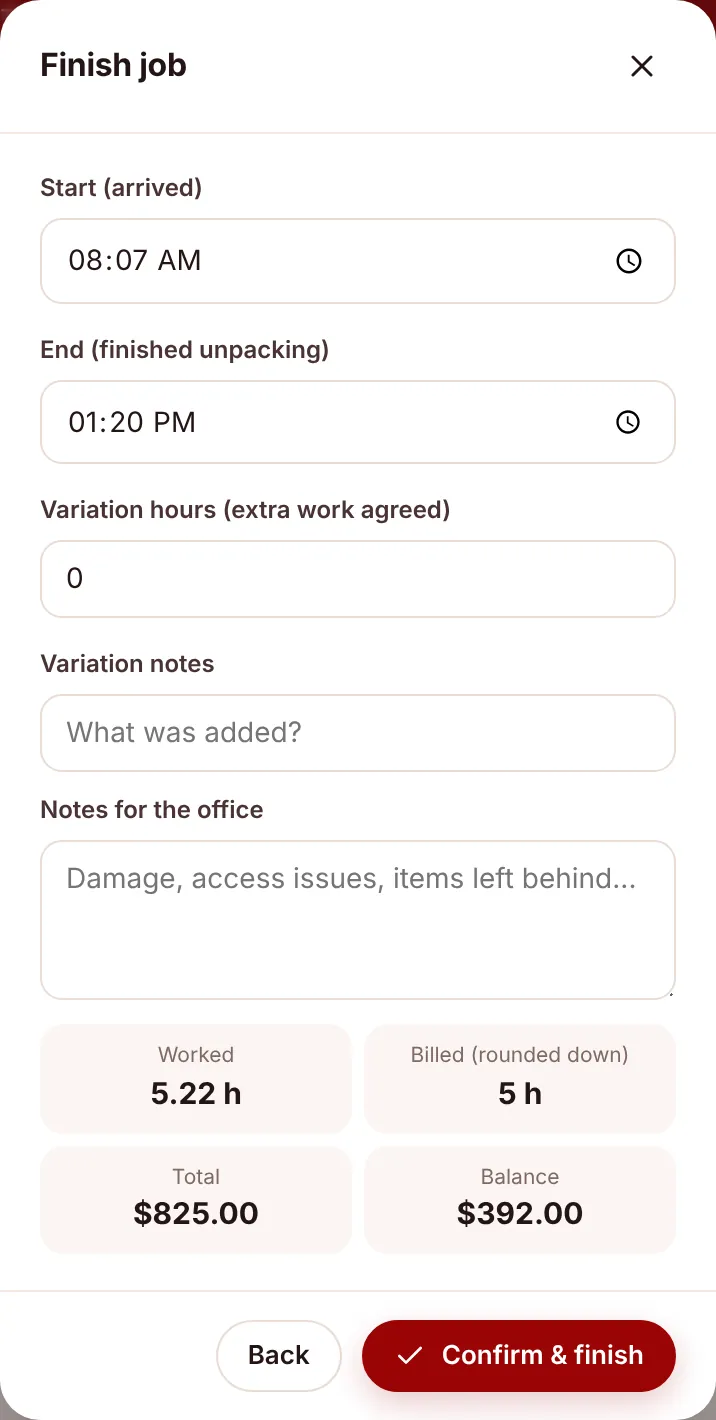
When the crew finish, the time on the job is rounded down to the quarter hour (minimum 4 hours) and the final bill is worked out. In the background the app charges the balance to the client’s saved card or sends a payment link, creates the invoice in Xero if it’s connected, and emails the client the final bill with a feedback form and a personal thank-you code for their next move. The job is now Completed and everything about it (times, payments, feedback, history) stays on the job record.
Who does what#
| Who | Where | What they do |
|---|---|---|
| Clients | /roo/book, their quote page, the feedback page | Get a price, book and pay the deposit, cancel, pay the balance, leave feedback |
| Office (Roo Booking) | /roo | Quotes, call backs, review, schedule, crew, payments, clients, reports |
| Owner (Roo Admin) | /roo | Everything the office does, plus settings, prices, integrations and the website |
| Crew | Job-sheet and day-sheet links on their phones | Start-of-day truck check, the job sheet, FINISH JOB |