Job openings and applicants
Advertise roles and work through applications from the website.
The website’s Join the Team page lists your open positions and takes applications, with a resume. Applications arrive in the app at /roo/team, where you move people through to hiring. Hiring someone adds them to your crew.
Advertise a position#
- Open
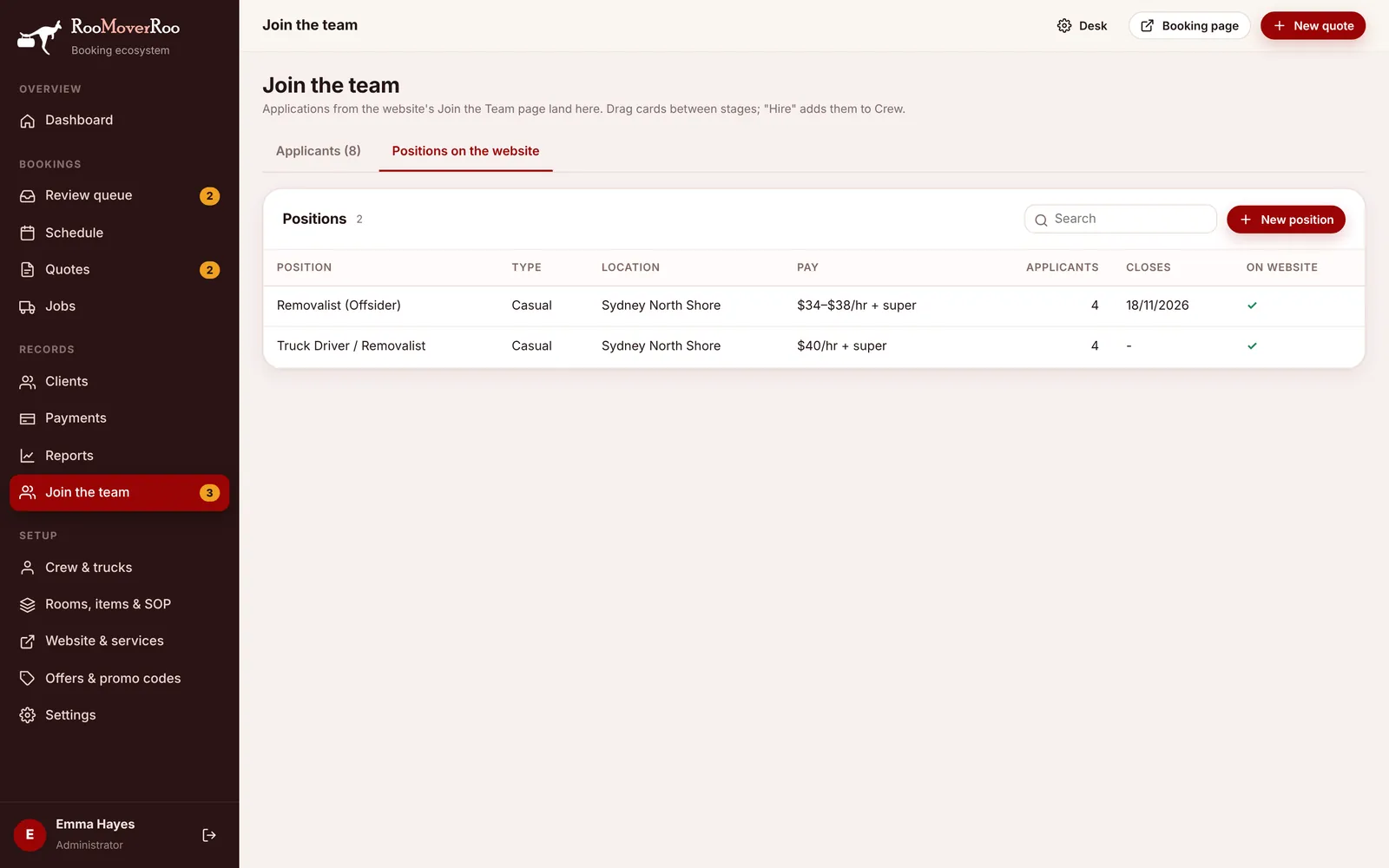
/roo/teamand the Positions on the website tab. - Press New position, or click a position to edit it.
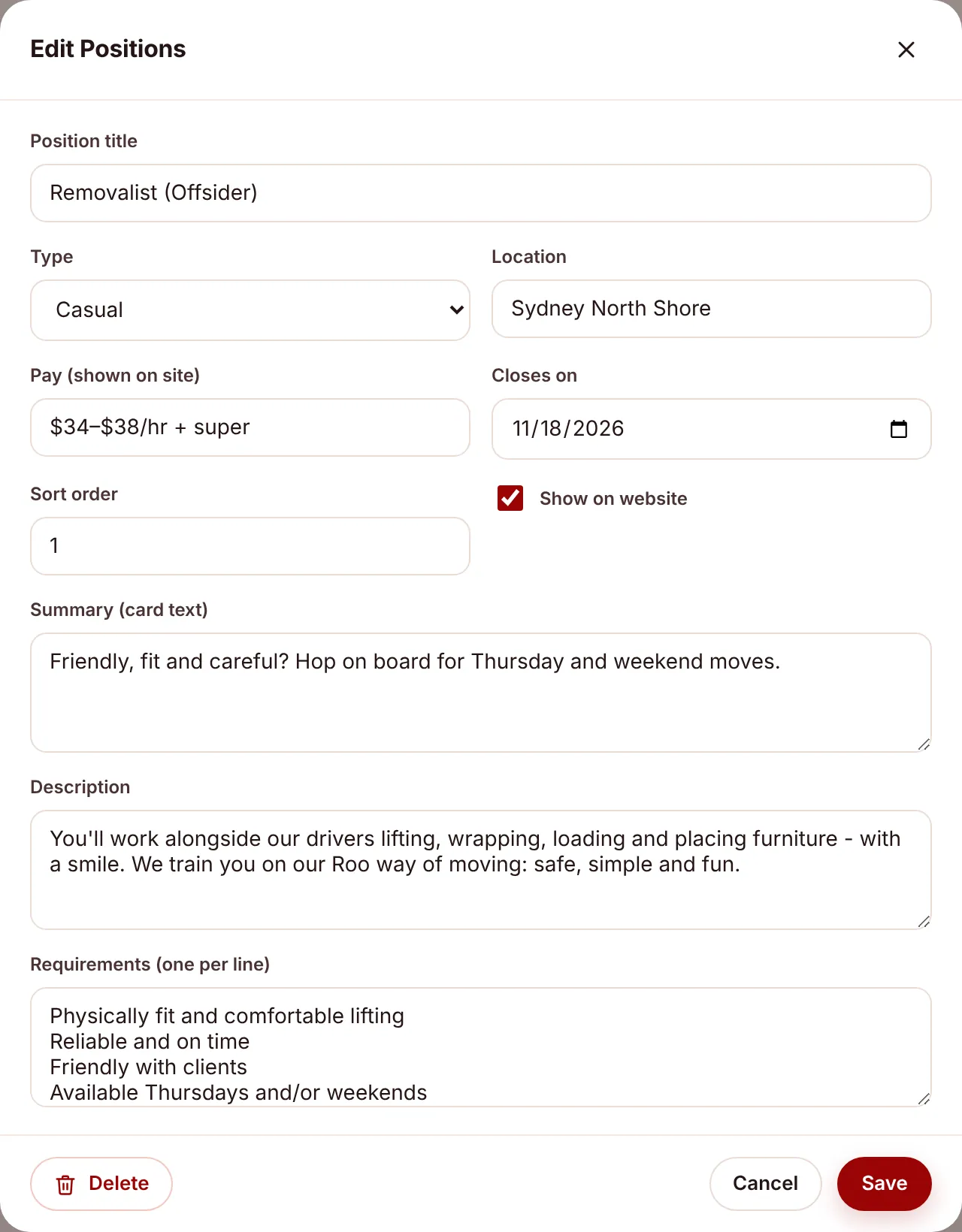
- Fill in the title, type (Casual, Part time, Full time or Contract), location, pay (shown on the site), closing date, sort order, a short summary for the card, the full description and the requirements, one per line.
- Tick Show on website and save. The position appears within about 5 minutes.
A position comes off the website automatically after its closing date, or as soon as you untick Show on website. The list shows how many people have applied for each one.
When someone applies#
On the website the applicant gives their name, phone, email, suburb, licence, availability, years of experience and right to work, writes a little about themselves and can attach a resume (PDF, Word, text or a photo, up to 6 MB). Then:
- The application appears in the New lane, with the resume stored privately in the app.
- The careers email in Website & services gets a “New application” email (the owner’s email if that’s blank, plus the booking team email). It has a button to open the app.
- The applicant gets a “Thanks for applying” email.
- The Join the team menu item shows a badge with the number of new applicants.
Work through applicants#
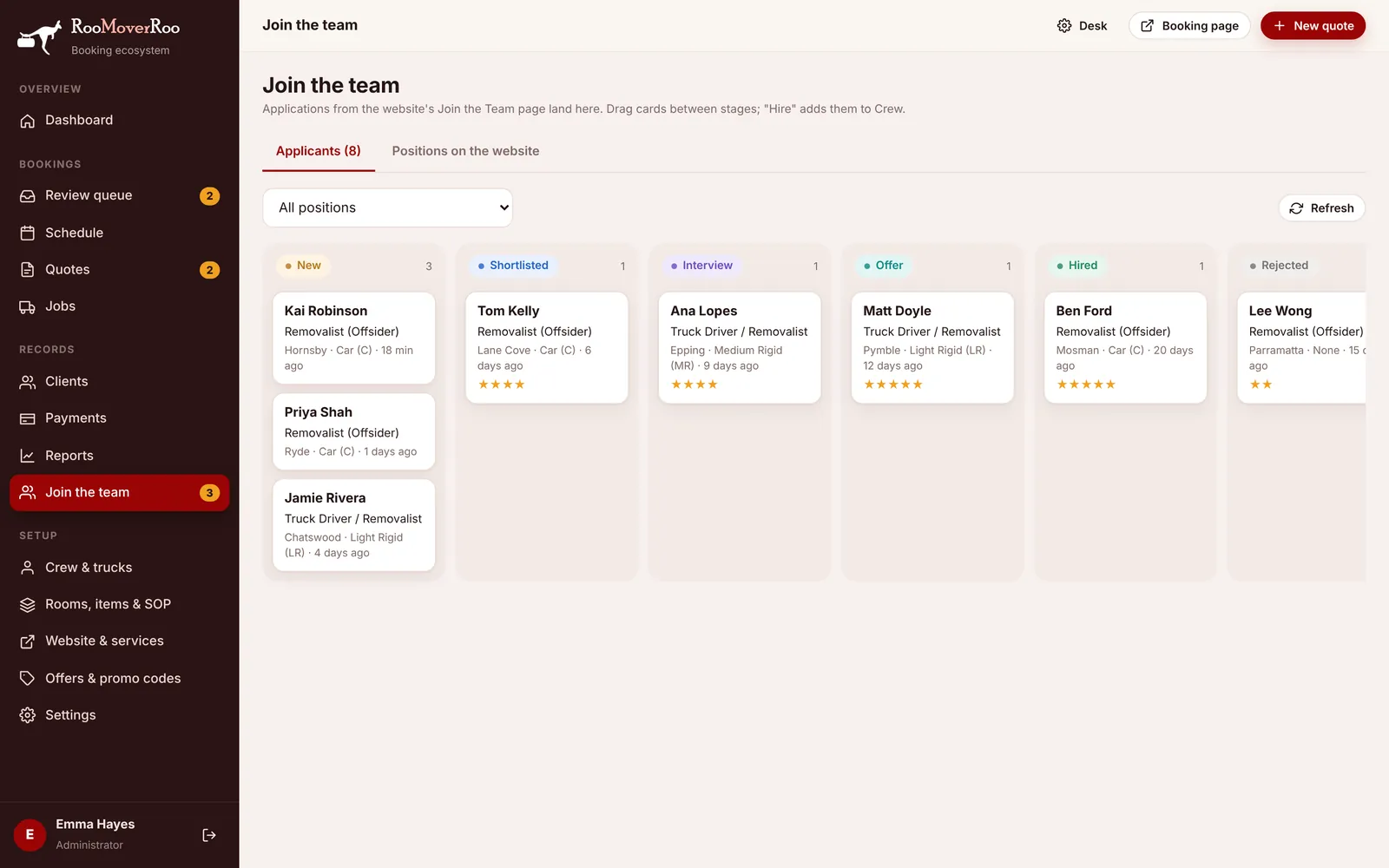
The board has six lanes: New, Shortlisted, Interview, Offer, Hired and Rejected. Drag a card to another lane to change its stage. Use the position filter to see one role at a time, and Refresh to load new arrivals.
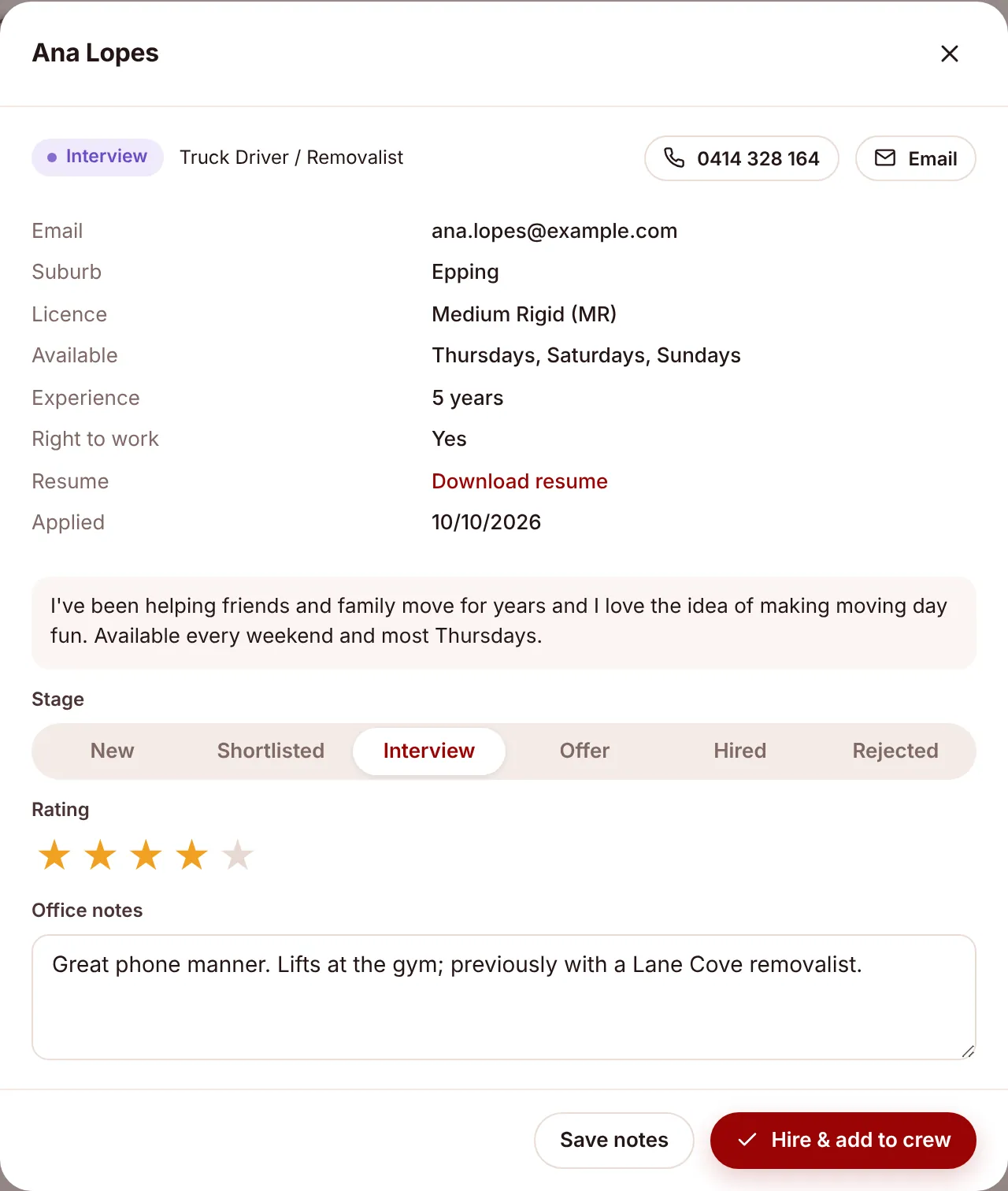
Click a card to open the applicant:
- Call and email buttons.
- Their details, including licence, availability, experience, right to work, the resume download and the date they applied.
- Stage buttons, a 1 to 5 star rating and office notes. Press Save notes to keep them.
Hire someone#
Press Hire & add to crew. The applicant moves to Hired and a crew record is created with their name, phone and email. If they hold a Light Rigid, Medium Rigid or Heavy Rigid licence they’re marked as a licensed truck driver. Finish their details in Crew and trucks, and the applicant record links to it.