
The job record
Everything about one move: details, crew, truck, trips, items, SOP, payments and history.
The job record holds everything about one move, from the review to the final bill. Open it by clicking a job anywhere in the app: the Jobs list, the Review queue, the Schedule or the Dashboard. Its address is /roo/jobs/J-00012, with the job’s own number.
The top of the page is the same on every tab. Below it are five tabs: Review & plan, Job sheet, Crew & truck, Billing and Activity.
The top of the page#
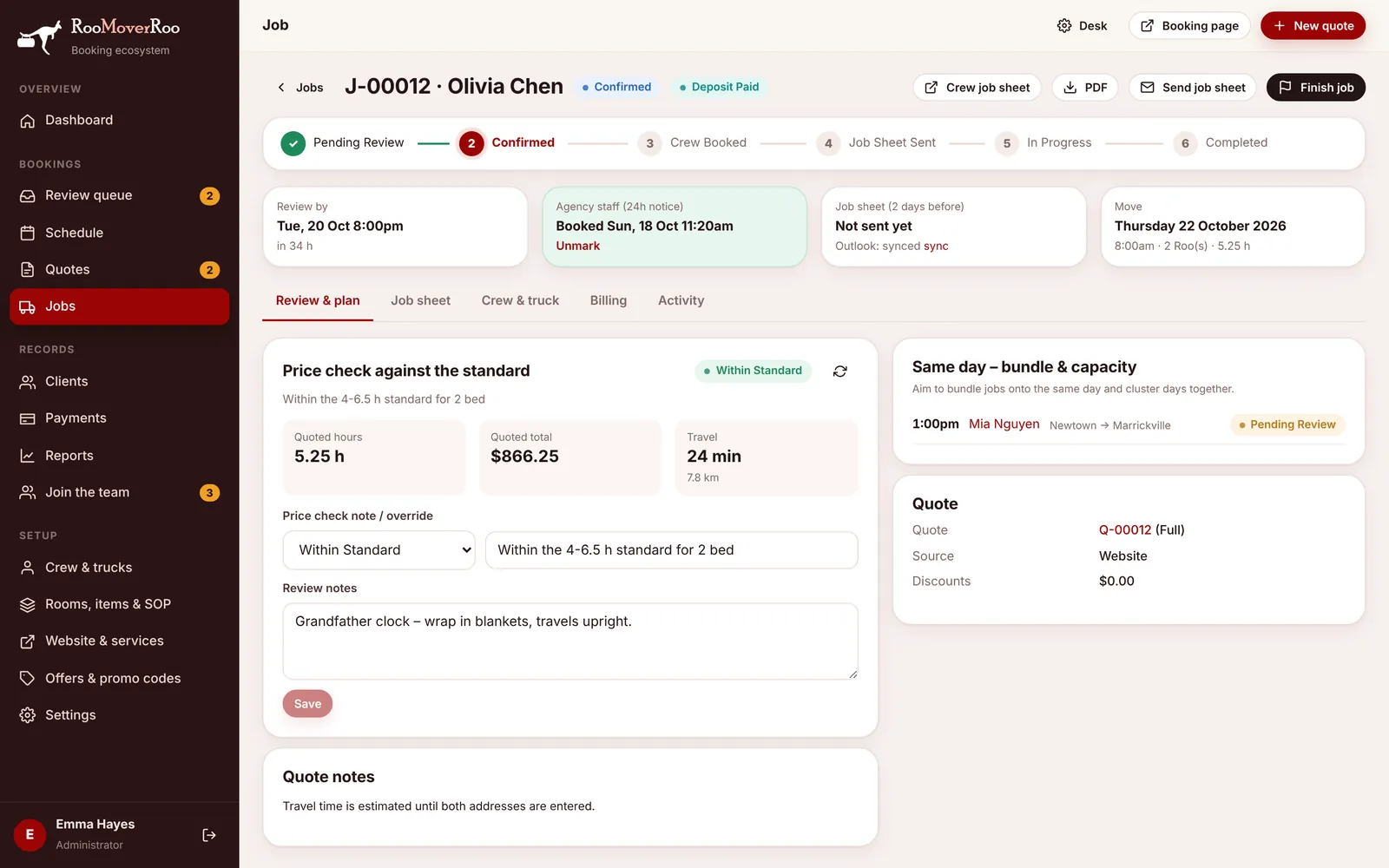
Next to the job number and client’s name are the job’s status and payment status. The buttons on the right are:
| Button | What it does |
|---|---|
| Crew job sheet | Opens the crew’s phone job sheet in a new tab, exactly as they see it. |
| Downloads the job sheet as a PDF. | |
| Approve & confirm | Shown while the job is Pending Review or Waitlist. Same as Approve in the Review queue. |
| Send job sheet / Re-send job sheet | Shown once the job is confirmed. Emails the job sheet to the crew and the office, and a reminder to the client. See below. |
| Finish job | Finishes the job from the office, if the crew couldn’t. See below. |
Under the buttons, a progress line shows the six stages from Pending Review to Completed, and four cards show what matters next:
- Review by: the review deadline and how long is left, in red once it has passed.
- Agency staff (24h notice): when agency staff need to be booked by, or when they were booked. Use Mark booked and Unmark here.
- Job sheet (2 days before): whether the job sheet has been sent, and whether the Outlook calendar is in sync. sync pushes the job to Outlook again.
- Move: the date, start time, number of Roos and planned hours.
Review & plan#
This is where you check the job before confirming it.
- Price check against the standard compares the quoted hours with your price standards and shows the result, the quoted hours, the quoted total and the travel. The refresh button runs the check again. If you’re happy with a job that’s above or below standard, change the result in Price check note / override and add a note.
- Review notes is for anything the office should know, such as “Grandfather clock, wrap in blankets”. Press Save to keep your notes.
- Same day – bundle & capacity lists the other jobs on the same date, so you can see how busy the day is and plan crews and trucks together.
- Quote links back to the original quote, with its source and any discounts. Quote notes shows warnings from the pricing.
While a job is waiting for review, this tab also has buttons to approve it or move it to the waitlist.
Review and confirm a job here#
- Check the price check result. If it’s above or below standard, look at the rooms and items on the Job sheet tab.
- Add review notes if there’s anything special, and save.
- Book agency staff if you need them, then press Mark booked on the Agency staff card.
- Press Approve & confirm. The job becomes Confirmed, the client gets their confirmation email and the job goes into Outlook if it’s connected.
Job sheet#
This tab is the job itself, and everything on it can be changed: the move date, start time (in half-hour steps), planned hours and hourly rate, the client’s details, both addresses with ground floor, stairs or lift and level, the property details (parking, driveway load and height limits, building manager, lift protection, valuables), the number of Roos and packing, unpacking or cleaning.
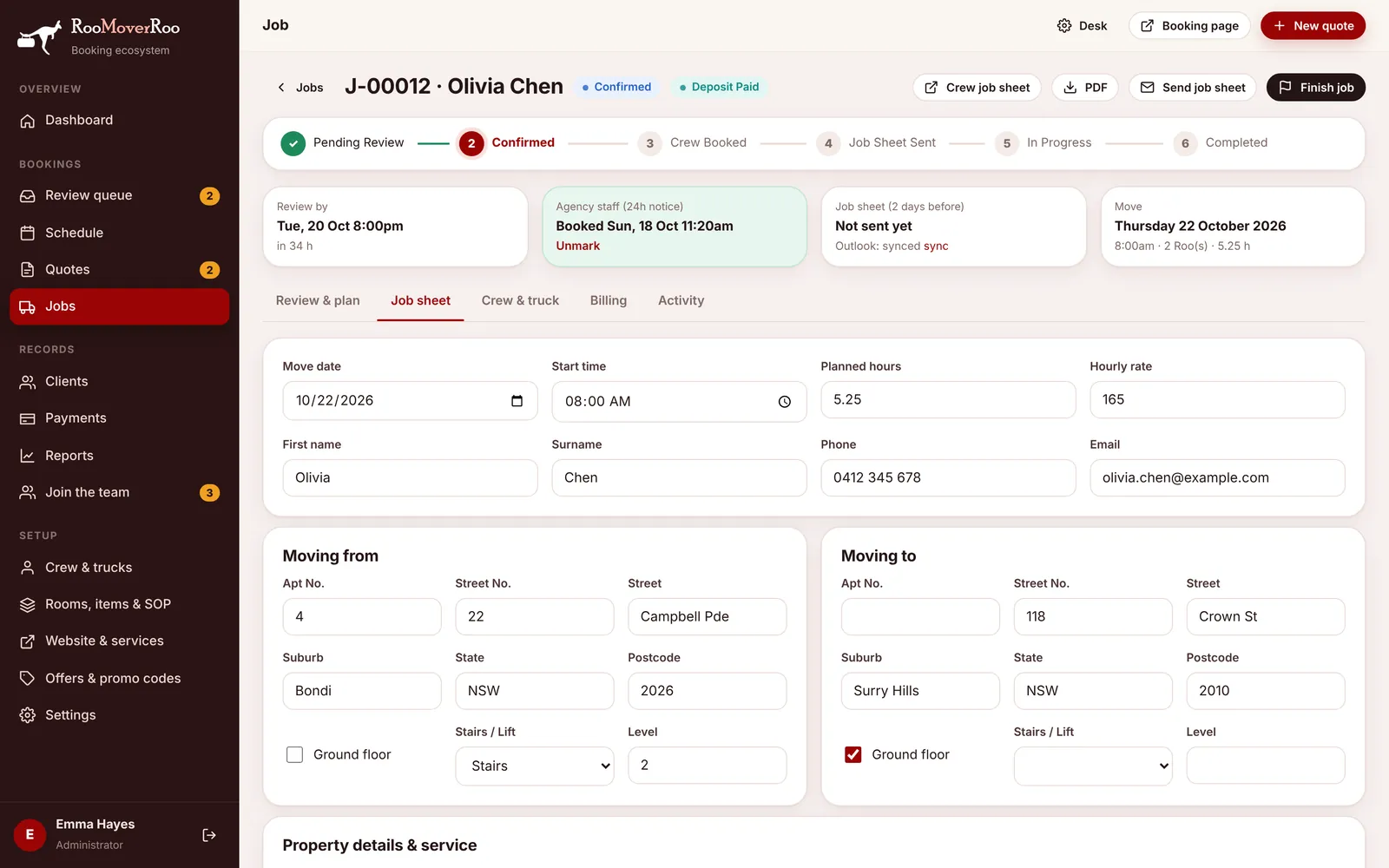
Further down is every room with its items and quantities. Change a quantity, or add something with the Room… and Item… boxes and Add item.
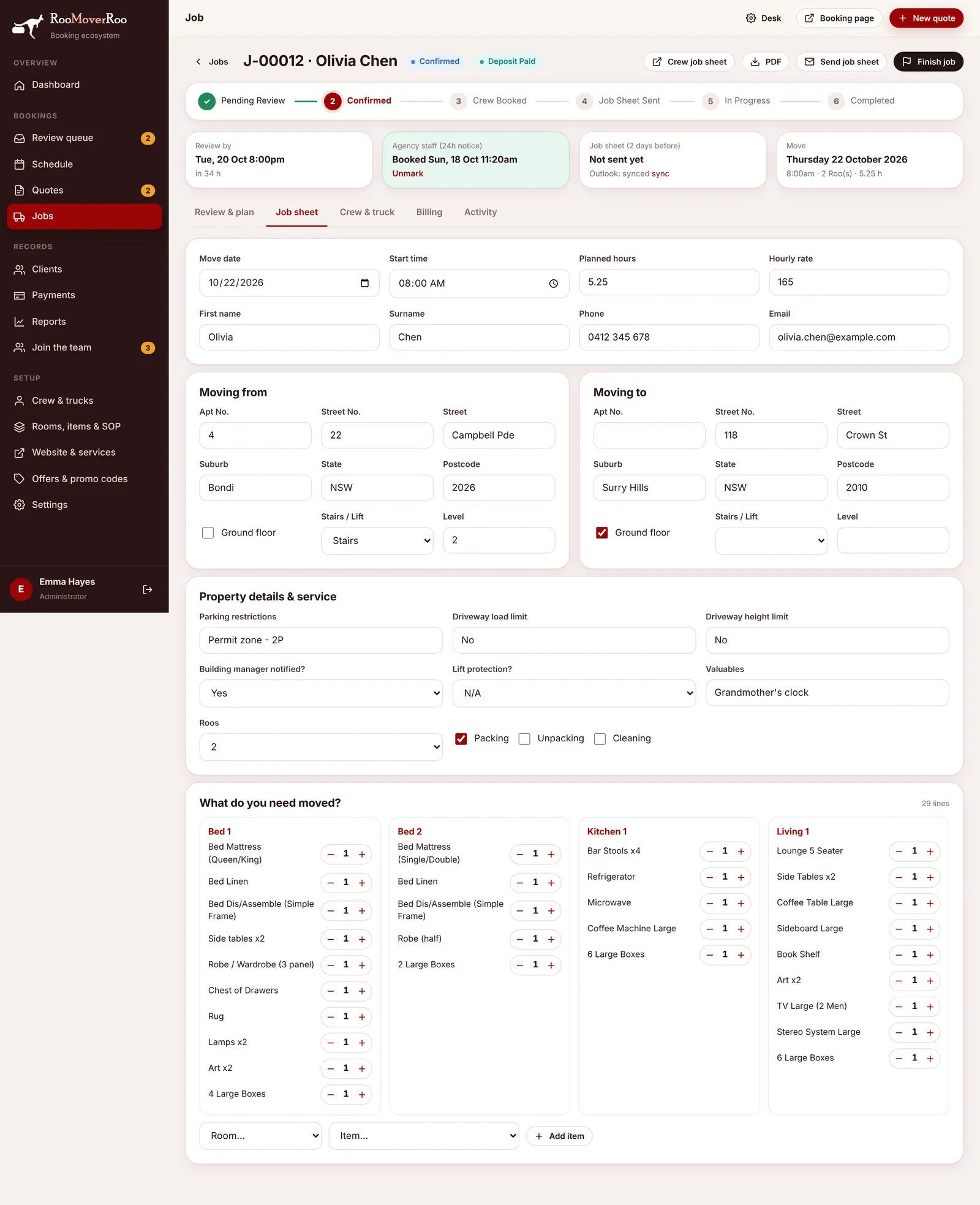
As soon as you change something, a bar appears at the bottom with Discard and Save job sheet.
Crew & truck#
Assign the crew and truck#
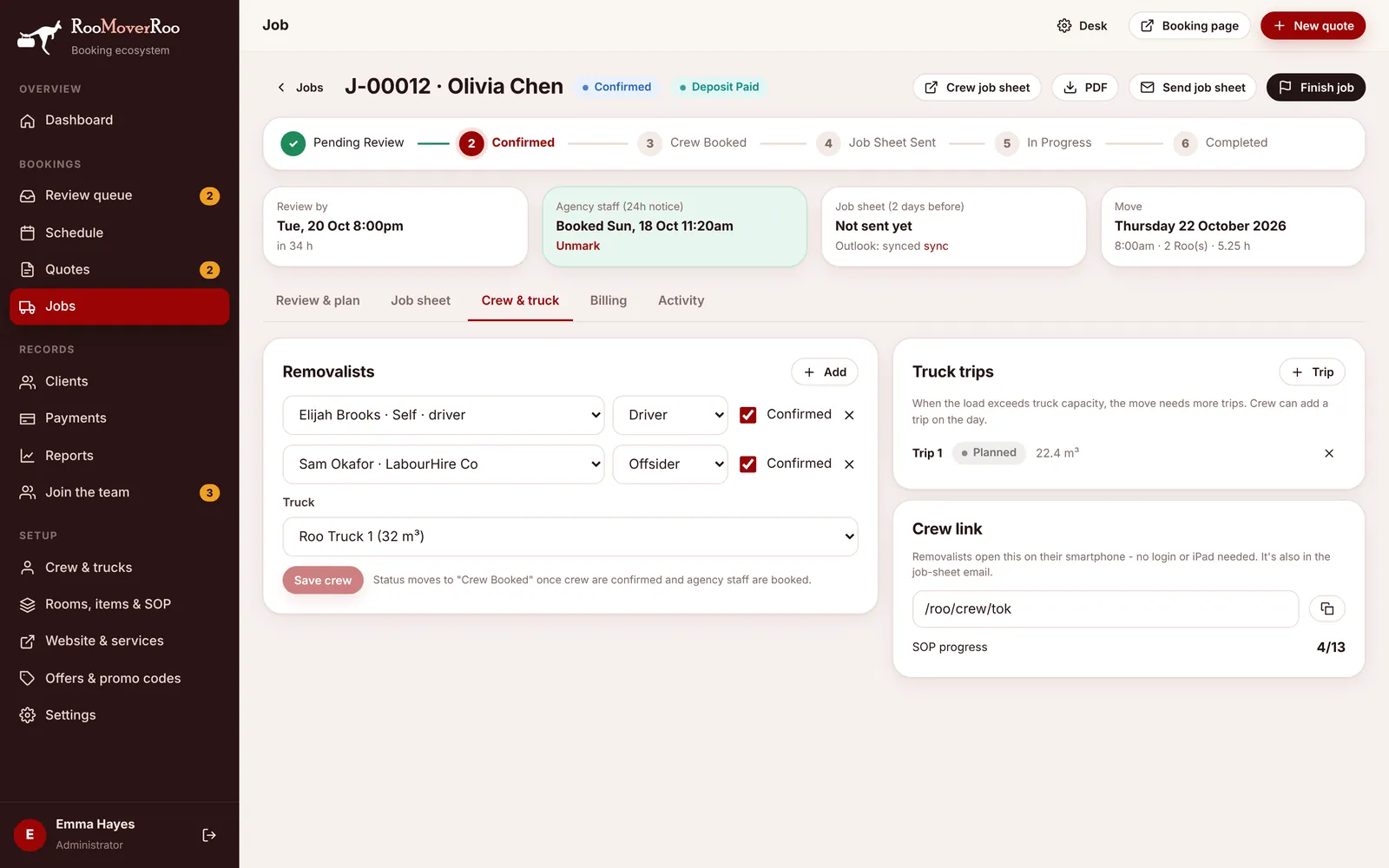
- Under Removalists, add a row for each person and choose them from your crew list.
- Set each person’s role to Driver or Offsider.
- Tick Confirmed once they’ve said yes.
- Choose the Truck.
- Press Save crew.
Status moves to Crew Booked once the job is confirmed, every crew member is confirmed and agency staff are marked as booked.
Truck trips lists the trips the load needs, worked out from its volume and the truck’s capacity. Add one with + Trip or remove one if plans change. The crew can also add a trip on the day.
Crew link is the private link to the crew’s job sheet, with a copy button, so you can text it to someone. SOP progress shows how many checklist steps the crew have ticked.
Billing#
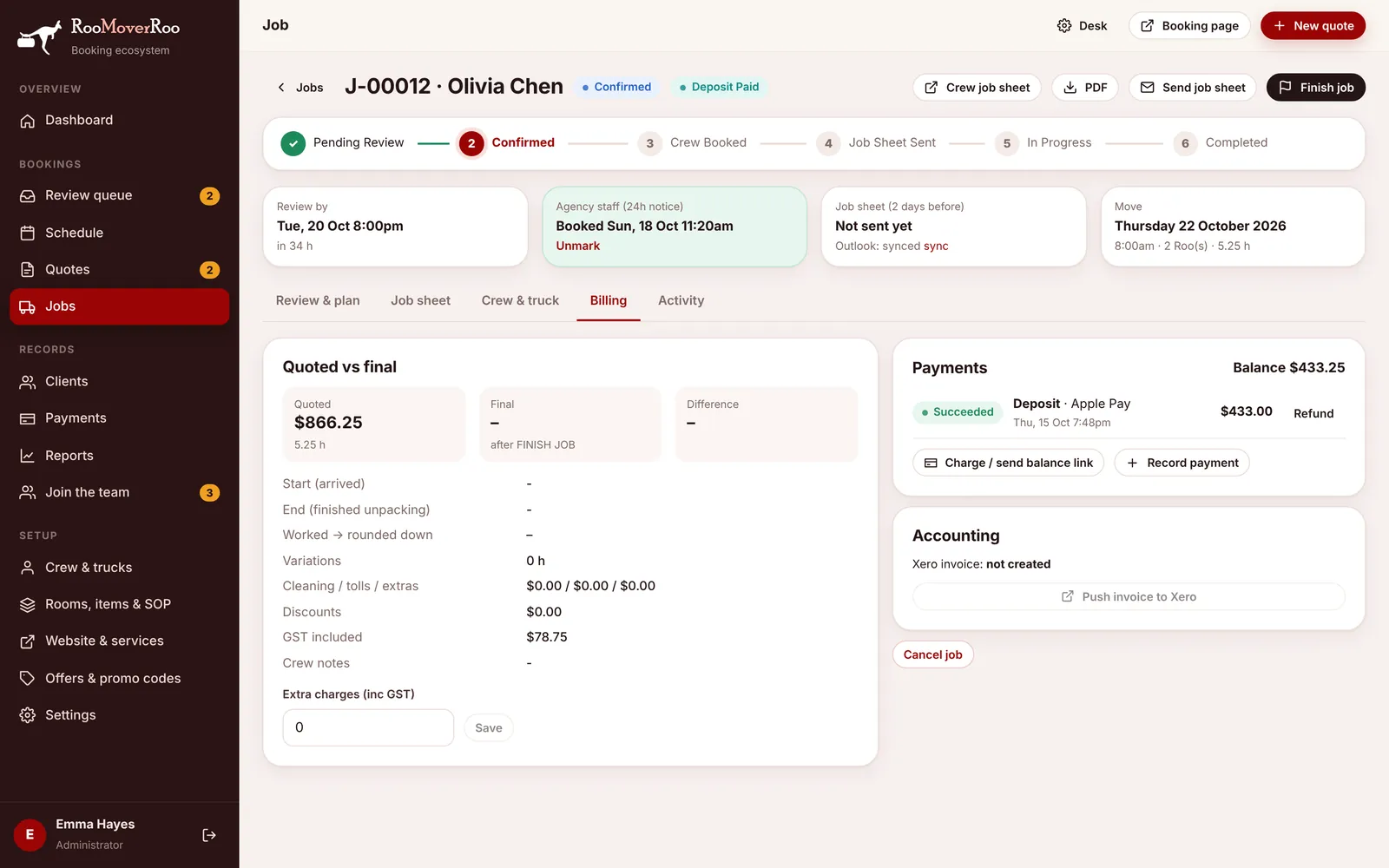
Quoted vs final compares the quoted total with the final bill and shows the difference. Before the move, Final shows “after FINISH JOB”. Underneath are the start and finish times, the hours worked and what they round down to, variations, cleaning, tolls and extras, discounts, the GST included and the crew’s notes.
Extra charges (inc GST) adds anything not covered by the hours, such as a skip or materials. Enter the amount and press Save. It’s added to the final total.
Payments lists every payment with its status and the balance still owing. The buttons are:
- Charge / send balance link: charges the balance to the card saved with the deposit. If that isn’t possible it emails the client a secure payment link. Greyed out when nothing is owing.
- Record payment: for money taken another way. Roo Admin only.
- Refund next to a payment: refunds it through Stripe. You’re asked for an amount; leave it blank to refund the whole payment. Roo Admin only.
Record a payment taken by hand#
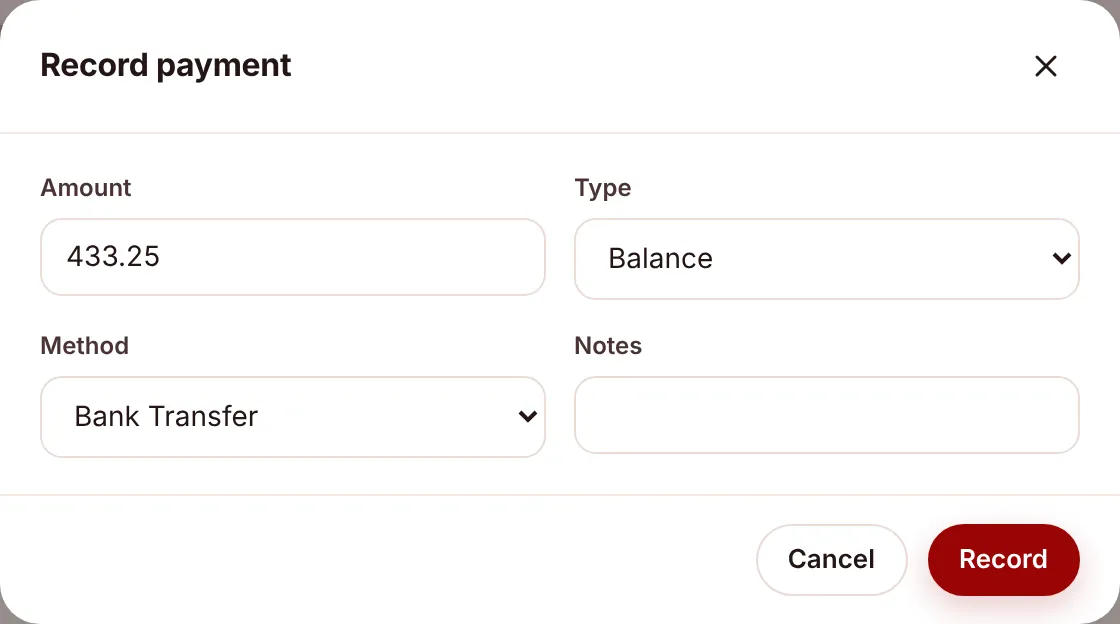
- Press Record payment.
- Enter the Amount.
- Choose the type: Deposit, Balance or Other.
- Choose the method: Bank Transfer, Cash or Card (manual).
- Add a note, such as the bank reference, and press Record.
The balance and payment status update straight away, and the payment is sent to Xero if it’s connected.
Accounting shows the Xero invoice number once there is one. Push invoice to Xero creates it by hand for a completed job if it didn’t go through (Roo Admin only). Re-send completion email + feedback form runs the after-finish step again for a completed job: it tries the balance again if one is still owing, creates the Xero invoice if it’s missing, and re-sends the client’s “Job complete” email with the feedback link.
Cancel a job#
- On the Billing tab, press Cancel job. (It isn’t shown for completed jobs.)
- Enter a reason and press Cancel job in the box. Back leaves the job as it is.
- If the start time is more than the free-cancellation window away (48 hours by default), Stripe deposits are refunded automatically. Inside the window the deposit is kept.
- The job and its quote become Cancelled, the client and the office are emailed, and the Outlook appointment is removed.
To undo a cancellation, press Re-open on the same tab. The job goes back to Pending Review for you to review again. Re-opening doesn’t take back a refund.
Activity#
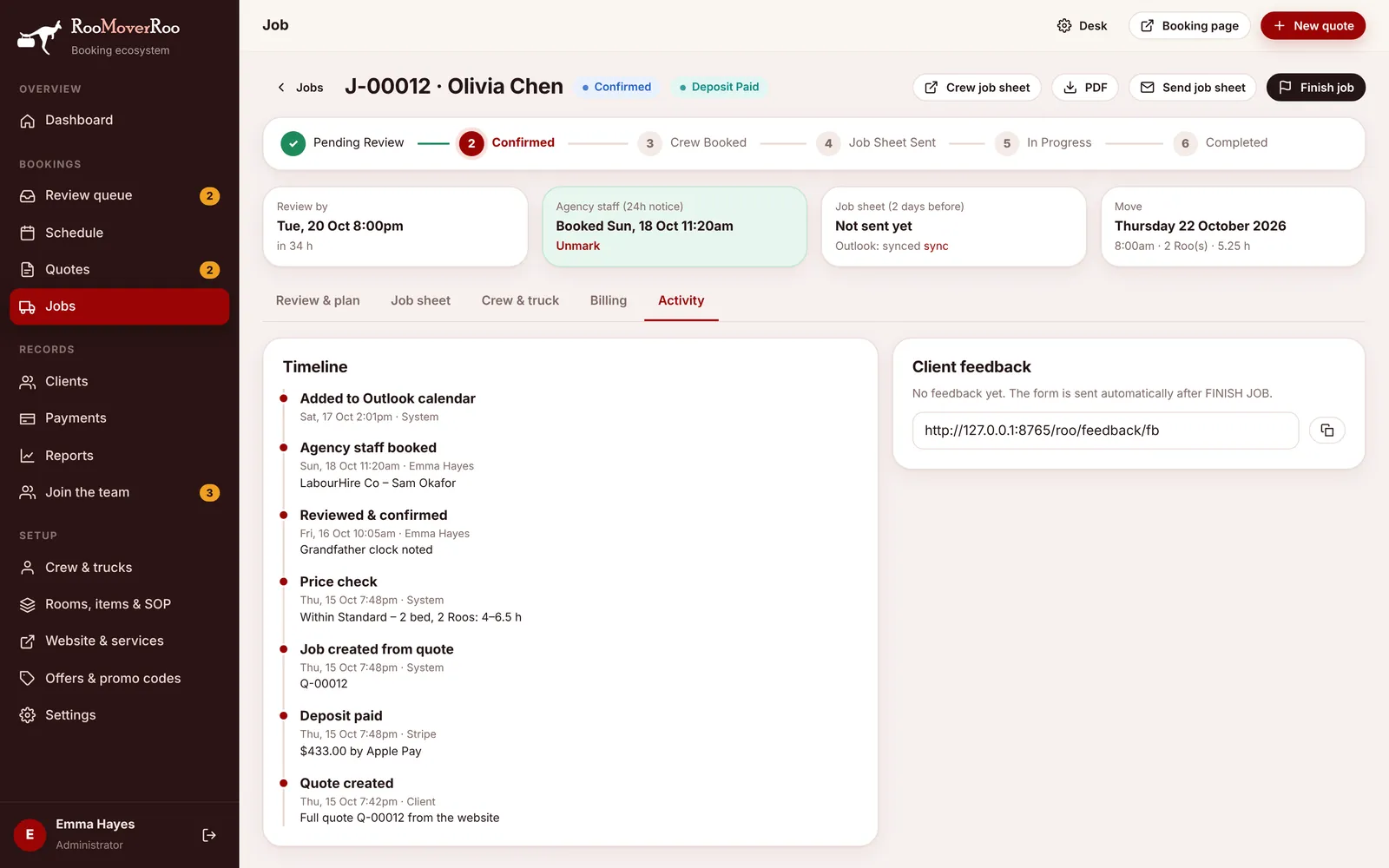
The Timeline lists everything that has happened to the job: the quote, the deposit, the review, crew changes, date changes, the job sheet, the crew’s arrival and finish, payments and cancellations, with who did it and when.
Client feedback shows the client’s stars, comment and whether they’d recommend you, once they’ve filled in the feedback form. Until then it says “No feedback yet. The form is sent automatically after FINISH JOB.” The thank-you code issued to the client and the feedback link (with a copy button) are here too.
Send the job sheet#
The job sheet goes out by itself two days before the move (set in Settings). Send it early, or again after a change, with Send job sheet or Re-send job sheet at the top. It:
- emails the crew and the office the job sheet link, with the PDF and a calendar file attached,
- emails the client a “See you in 2 days” reminder with your moving tips,
- updates the Outlook calendar if it’s connected,
- moves the job to Job Sheet Sent if it was Confirmed or Crew Booked.
Finish a job from the office#
The crew normally press FINISH JOB on their phone. If they couldn’t, finish it here.
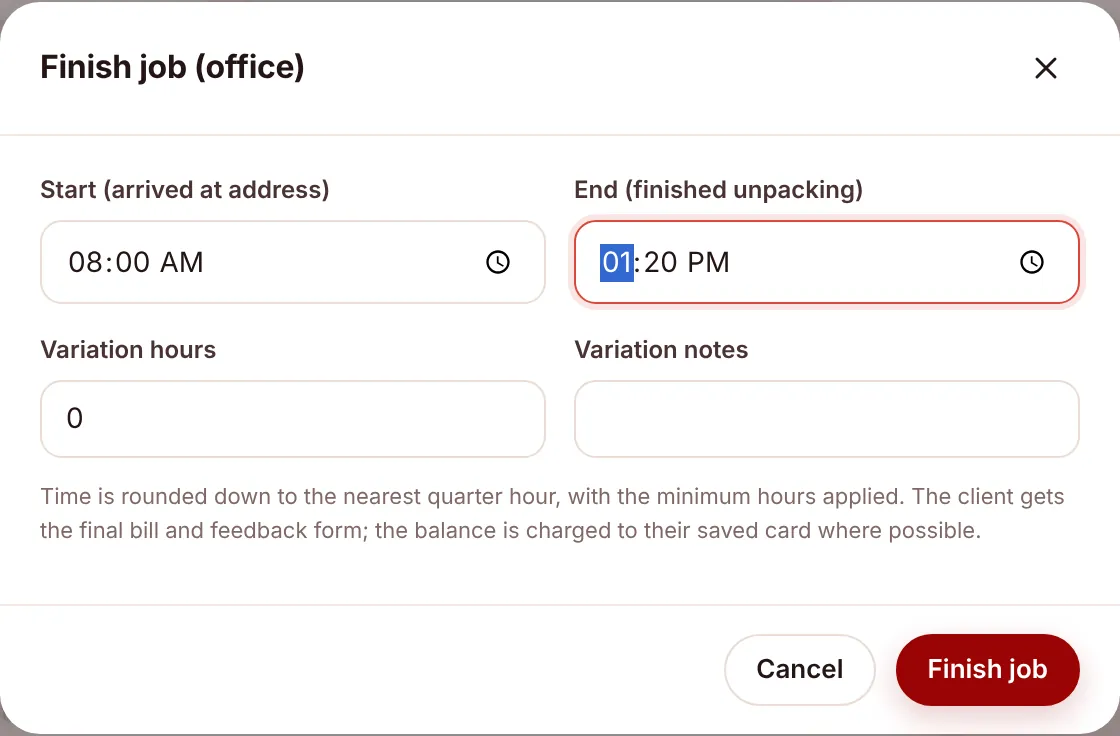
- Press Finish job at the top of the job.
- Enter Start (arrived at address) and End (finished unpacking).
- Add Variation hours and Variation notes for any agreed extra work.
- Press Finish job in the box.
The app works out the final bill. The time worked is rounded down to the quarter hour, variations are added and the minimum hours applied. The job becomes Completed and the client gets a personal thank-you code. In the background, the balance is charged to the saved card (or a payment link is emailed), the Xero invoice is created, the client is emailed the final bill with a feedback link, the office gets a “FINISHED” email and the calendar is updated. See Finishing the job for how the bill is worked out.