
Finishing the job
Record start and finish times, variations and notes, then press FINISH JOB.
FINISH JOB closes the move. It records your start and finish times, works out the final bill and sends it to the client. Press it once the last item is unpacked and the Finish Job steps are ticked.
Finish the job#
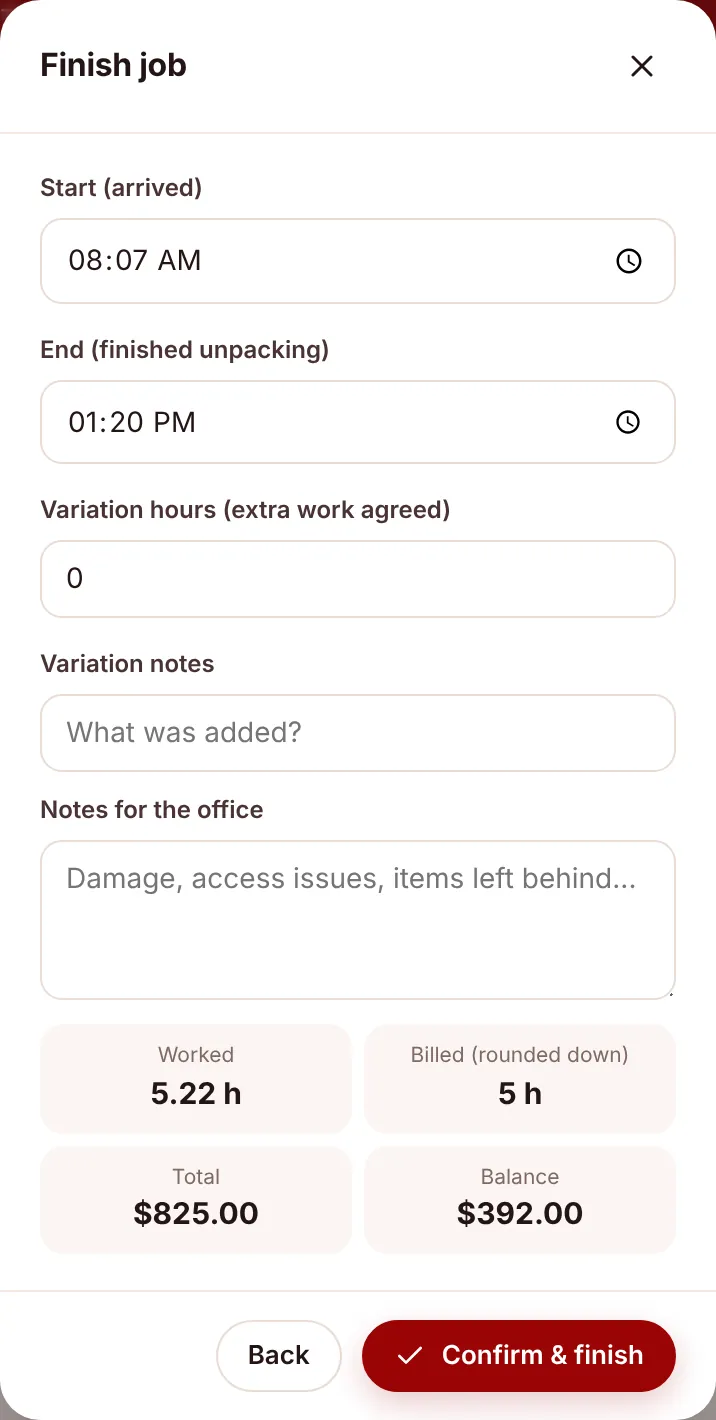
- Press FINISH JOB at the bottom of the job sheet. The Finish job window opens.
- Check the times. Start (arrived) is filled from when you pressed Arrived. End (finished unpacking) is filled from Finished, or the time now. Change either if it’s wrong.
- Add any variation. If the client asked for extra work on the day, enter the agreed time in Variation hours (extra work agreed), in quarter hours, and say what it was in Variation notes.
- Leave notes for the office. Use Notes for the office for damage, access problems, items left behind or anything else they should know.
- Check the preview. The window shows Worked, Billed (rounded down), Total and Balance. It updates as you change the times.
- Press Confirm & finish.
How the bill is worked out#
The time from start to end is rounded down to the quarter hour. Any variation hours are added. If that comes to less than the minimum (4 hours by default), the minimum is billed. The billed hours are multiplied by the job’s hourly rate, then cleaning, tolls and any extra charges are added and discounts taken off.
| Example | Billed |
|---|---|
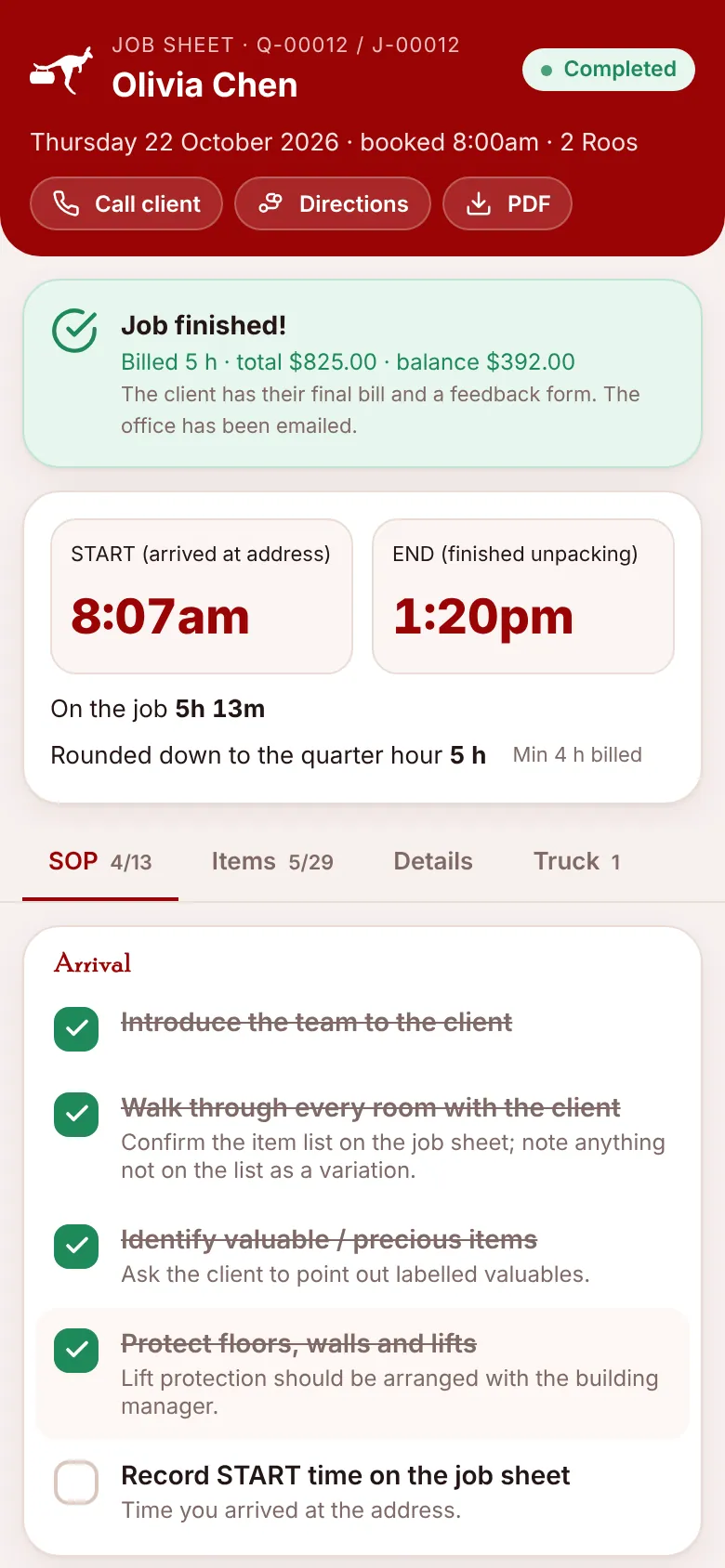
| 8:07 am to 1:20 pm (5 h 13 min) | 5 hours |
| 8:00 am to 11:50 am (3 h 50 min) | 4 hours (the minimum) |
| 5 h 13 min plus 0.5 variation hours | 5.5 hours |
What happens next#
Straight away the job becomes Completed and the screen shows “Job finished!” with the billed hours, total and balance. Then, behind the scenes:
- The balance is charged to the card the client paid the deposit with. If that isn’t possible, the client is emailed a link to pay.
- The client gets a “Job complete” email with the final bill, a feedback form and a thank-you code.
- The office gets a “FINISHED” email with the worked and billed hours, variations, total, balance and your notes.
- If the business uses Xero, an invoice is created.
Changes after finishing#
Once a job is finished the job sheet can’t be changed from the phone. If you made a mistake, call the office. They can correct it from the job record.