Email delivery
Set up the outgoing email account the app uses.
RooMoverRoo sends its emails through the outgoing email account set up in Frappe. Nothing is emailed until one exists, so set this up before you take real bookings.
Set up the outgoing account#
- Sign in to Desk at
/staff-loginas an Administrator, then open Email Account and create a new account. - Use your business address (for example roo@roomoverroo.com) and your mail provider’s SMTP settings. Microsoft 365 and Google Workspace both work.
- Tick Enable Outgoing and Default Outgoing, and save.
- Send yourself a test: make a quote at
/roo/bookwith your own email address. You should receive “Your RooMoverRoo quote”.
Where staff emails go#
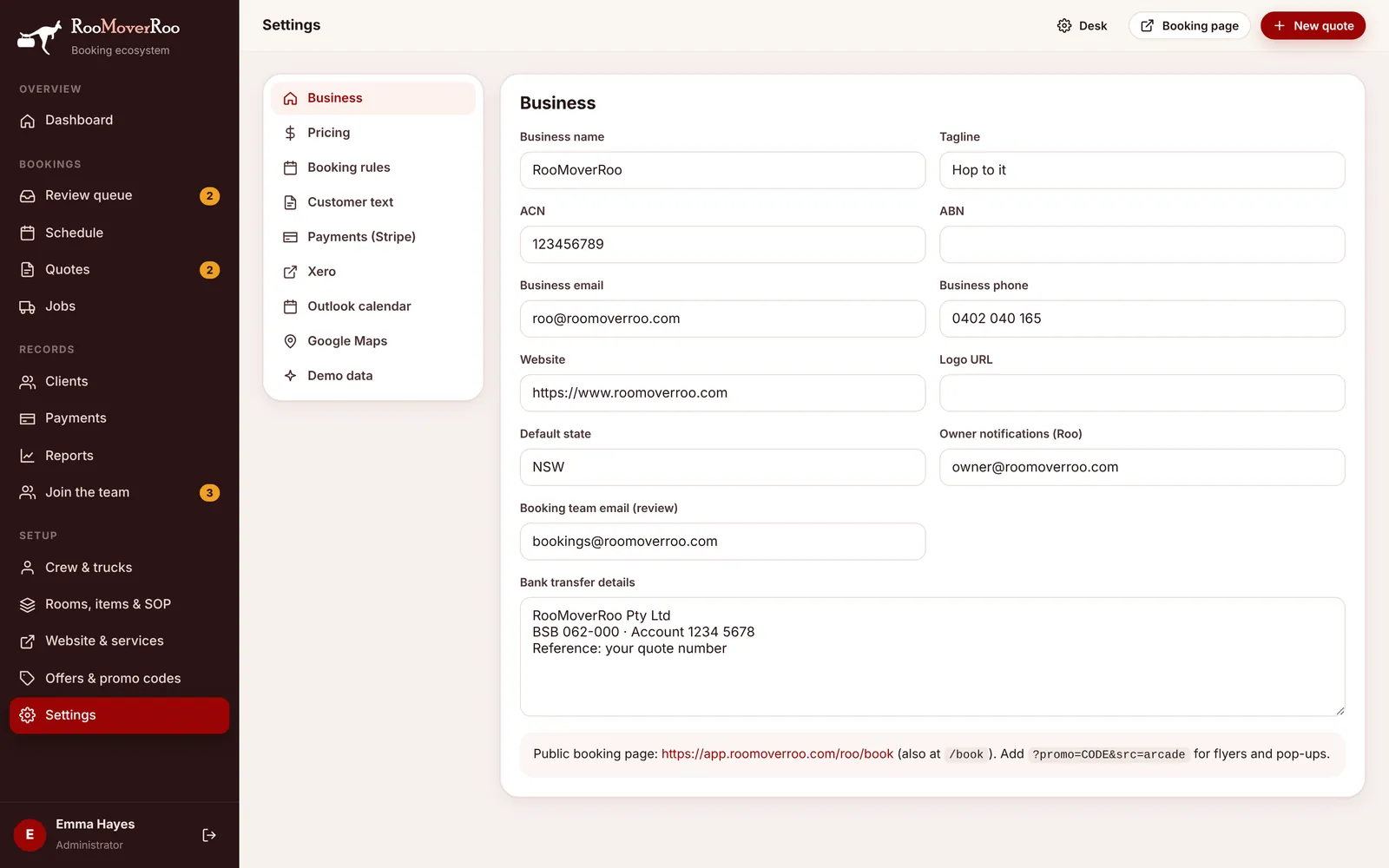
Office alerts (new jobs to review, call-back requests, finished jobs, feedback, reminders) go to the two addresses on the Business tab in Settings: Owner notifications (Roo) and Booking team email (review). Review reminders go to both.
Clients receive their emails at the address they gave on the booking form. See Emails the app sends for the full list.