Service options
Edit the service cards on the website and where their buttons go.
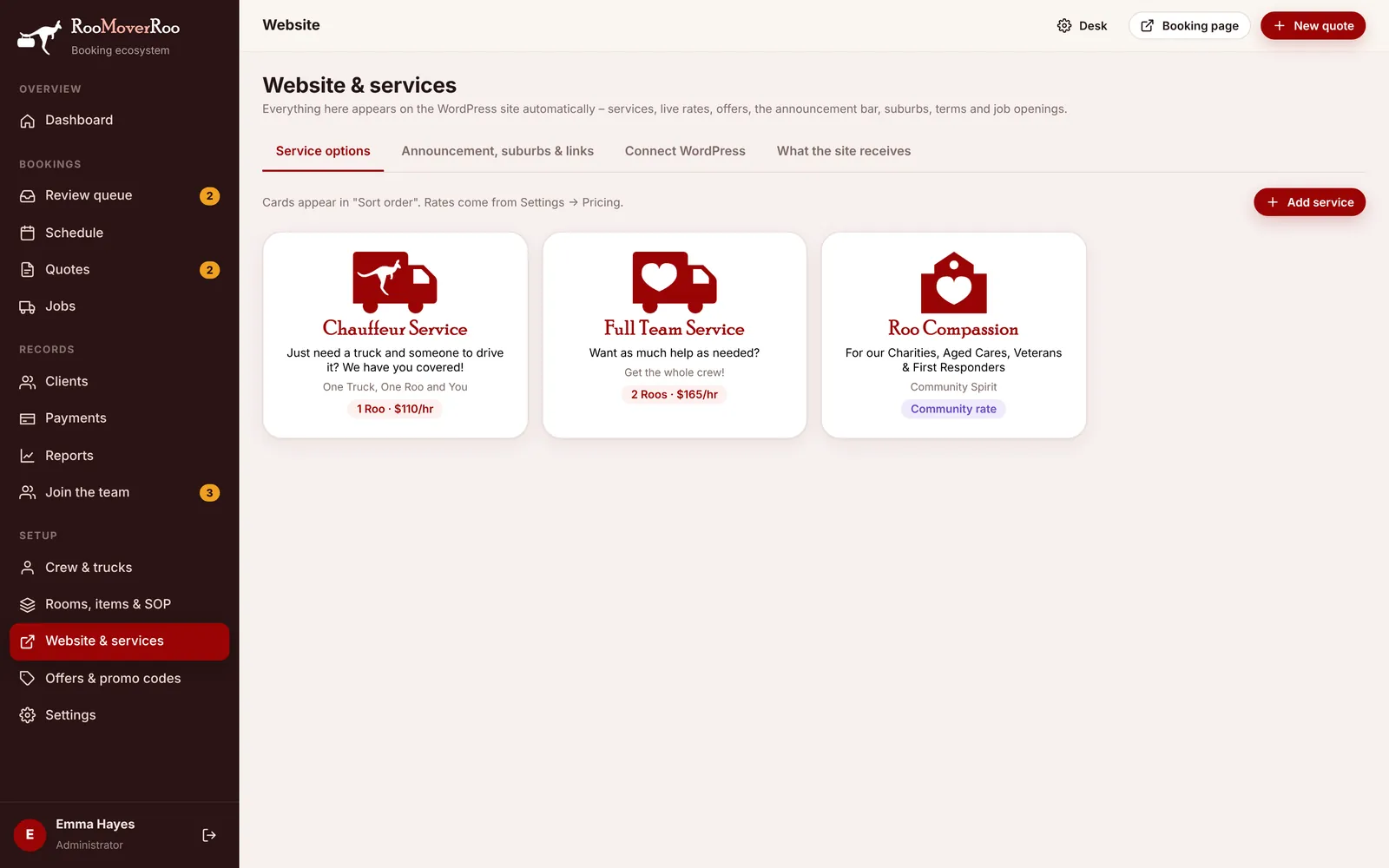
Service options are the cards on the website’s Service Options page, such as Chauffeur Service, Full Team Service and Roo Compassion. You edit them in the app, and each card’s hourly rate comes straight from your pricing settings, so the website always shows the current price.
Edit a service#
- Open
/roo/website. The Service options tab shows a card for each service. Hidden services are faded and marked Hidden. - Click a card to edit it, or press Add service for a new one.
- Change the fields (see below) and press Save. The app confirms “Service saved – the website updates within 5 minutes”.
The fields#
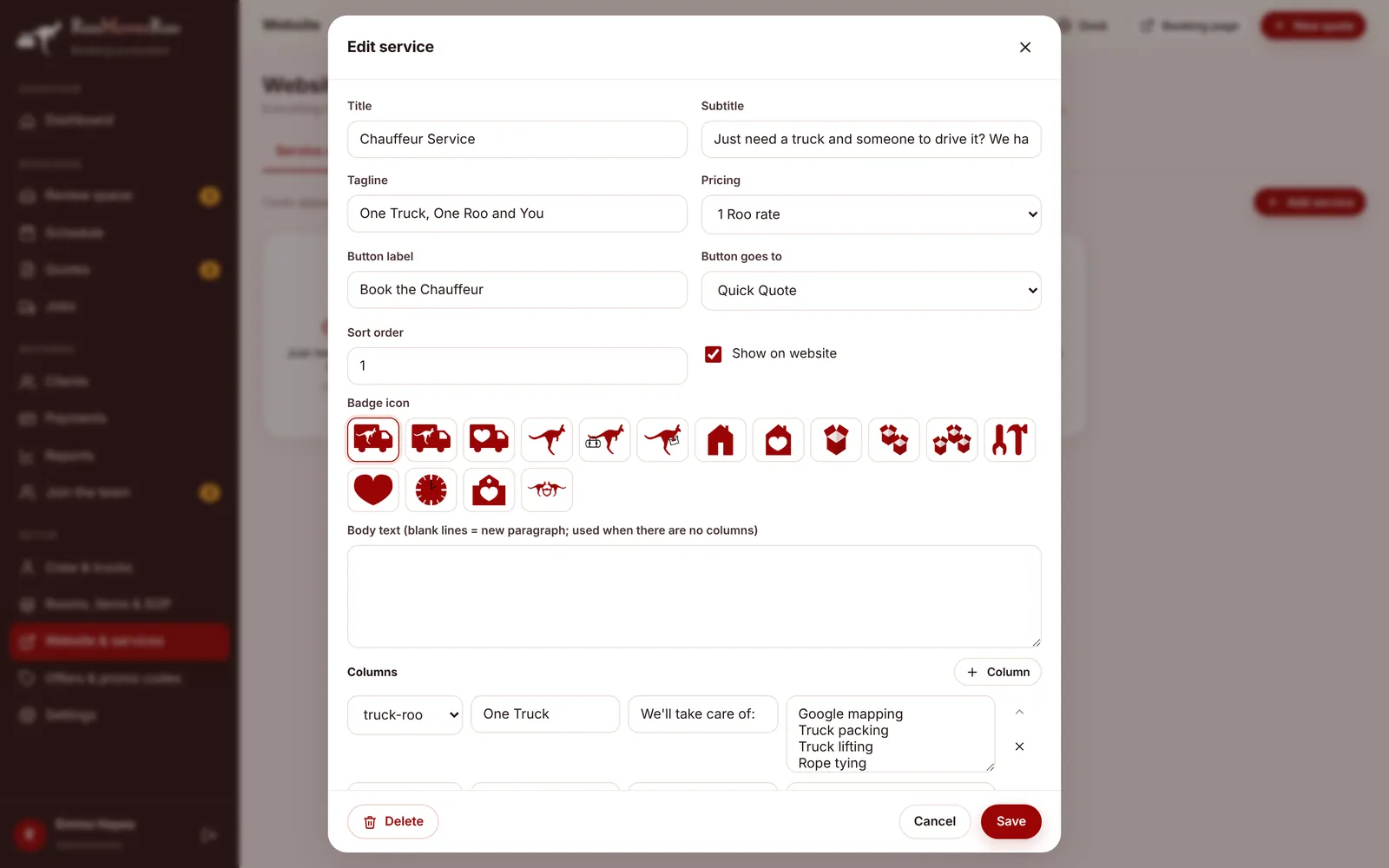
| Field | What it does |
|---|---|
| Title | The service name. It can’t be changed once the service is saved. |
| Subtitle and Tagline | The lines under the title, for example “Want as much help as needed?”. |
| Pricing | 1 Roo rate or 2 Roos rate shows that hourly rate from Settings. Community shows “Community rate” instead of a price. |
| Button label | The words on the card’s button, such as “Book the Full Team”. |
| Button goes to | Quick Quote or Full Quote opens the booking form, with the matching number of Roos chosen. Call back takes visitors to the call-back form. Phone rings your business number. |
| Sort order | Lower numbers come first. |
| Show on website | Untick to hide the service without deleting it. |
| Badge icon | The brand icon at the top of the card. |
| Body text | Paragraphs of text, used when the service has no columns. Leave a blank line between paragraphs. |
| Columns | Optional columns of points, like One Truck, One Roo and And You. Each has an icon, a heading, a lead line and one point per line. Press Column to add one, and use the arrow and cross to reorder or remove. |
Changing a rate#
Rates aren’t set on the service. Change Hourly rate – 1 Roo (Chauffeur) or Hourly rate – 2 Roos (Full Team) in Settings, Pricing. The website’s cards, the booking form and new quotes all use the new rate.
Deleting a service#
Open the service and press Delete. If you might want it back, untick Show on website instead. Only Roo Admin users can save or delete services.