Quotes
Find, filter and follow up every quote, including call-back requests.
Every quote lands in Quotes at /roo/quotes: quotes clients make on the booking form or the website, and quotes the office makes over the phone. Use this list to find a quote, see where it’s up to and follow up the ones that haven’t booked.
Tabs and columns#
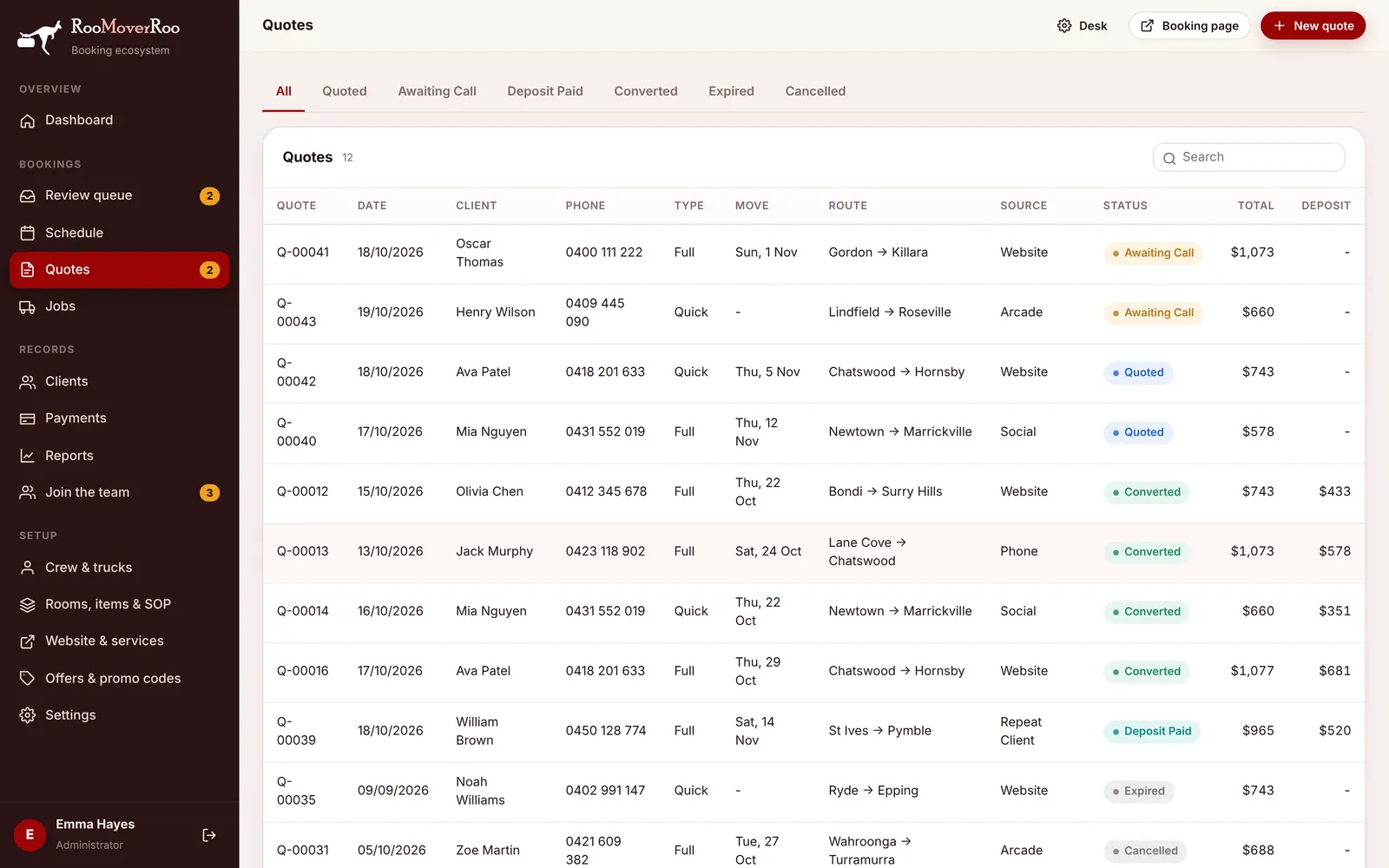
The tabs across the top filter by status: All, Quoted, Awaiting Call, Deposit Paid, Converted, Expired and Cancelled. Use the search box to find a particular quote. Click any row to open the quote.
The columns are Quote, Date, Client, Phone, Type (Quick or Full), Move (the move date), Route, Source, Status, Total and Deposit.
What the statuses mean#
| Status | Meaning |
|---|---|
| Draft | Started but not finished. |
| Quoted | The client has a price but hasn’t paid a deposit. |
| Awaiting Call | The client asked to talk to someone before paying, or asked for a call back from the website. |
| Deposit Paid | The deposit has been paid. The quote becomes a job straight away. |
| Converted | The quote is now a job. Open the job to carry on. |
| Expired | It passed its “valid until” date (30 days by default) without being booked. Expiring runs once a day. |
| Cancelled | Cancelled by the office, or its job was cancelled. |
Follow up a call back#
Clients who choose “Talk to a person before paying” appear on the Awaiting Call tab, and the Quotes menu item shows how many are waiting. The office also gets a “Call back requested” email for each one.
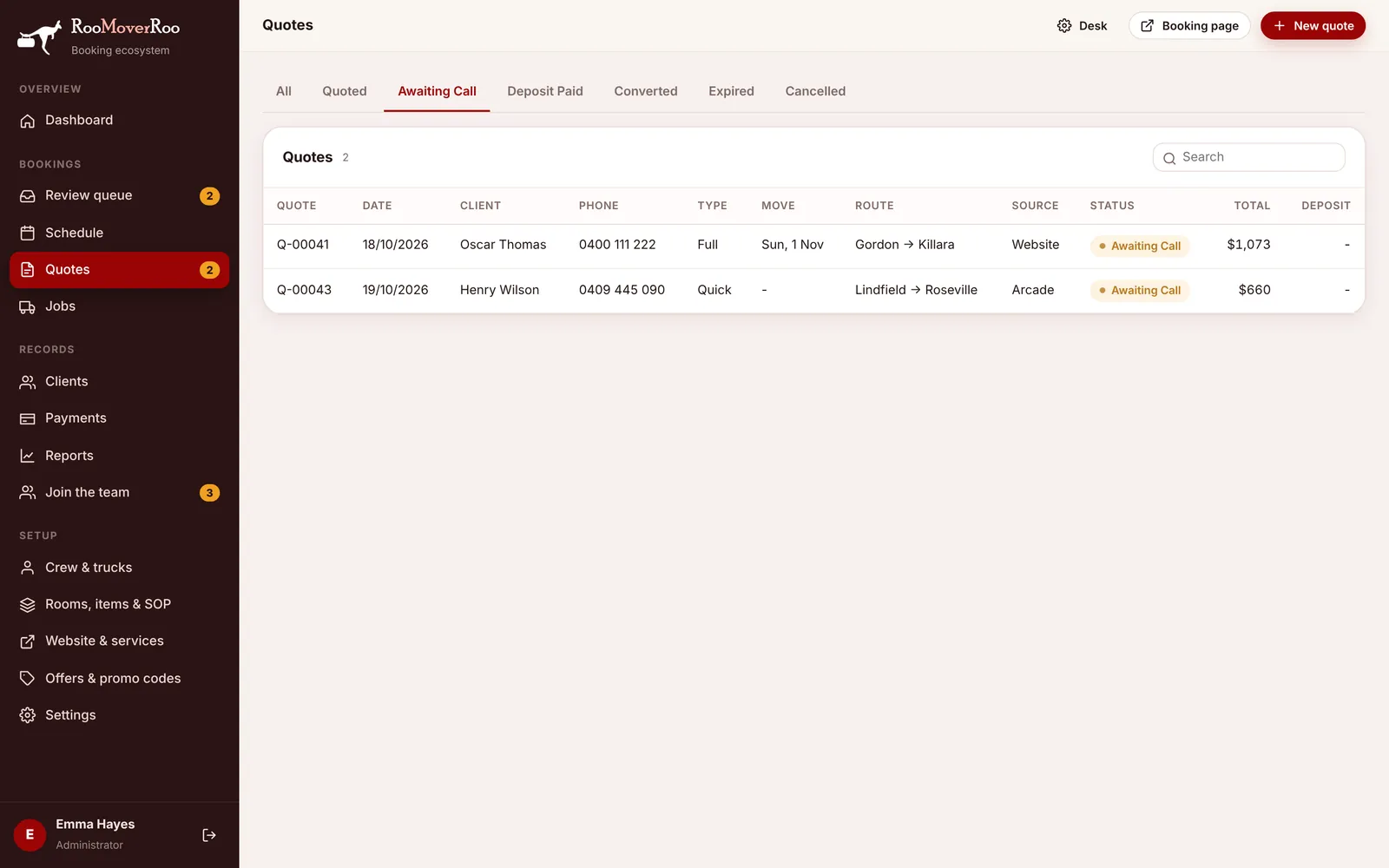
- Open the quote from the Awaiting Call tab.
- Ring the client. Their phone number is at the top of the details.
- Record the outcome in the Call back panel: To Call, Called – Booked, Called – Thinking, No Answer or Not Interested. Add a note and press Save call notes.
- If they want to book, send them the payment link with Copy quote / payment link, or make it a job for them. See Working on a quote.