Finding your way around
The menu, the header, search, lists, filters and the buttons you'll see on every screen.
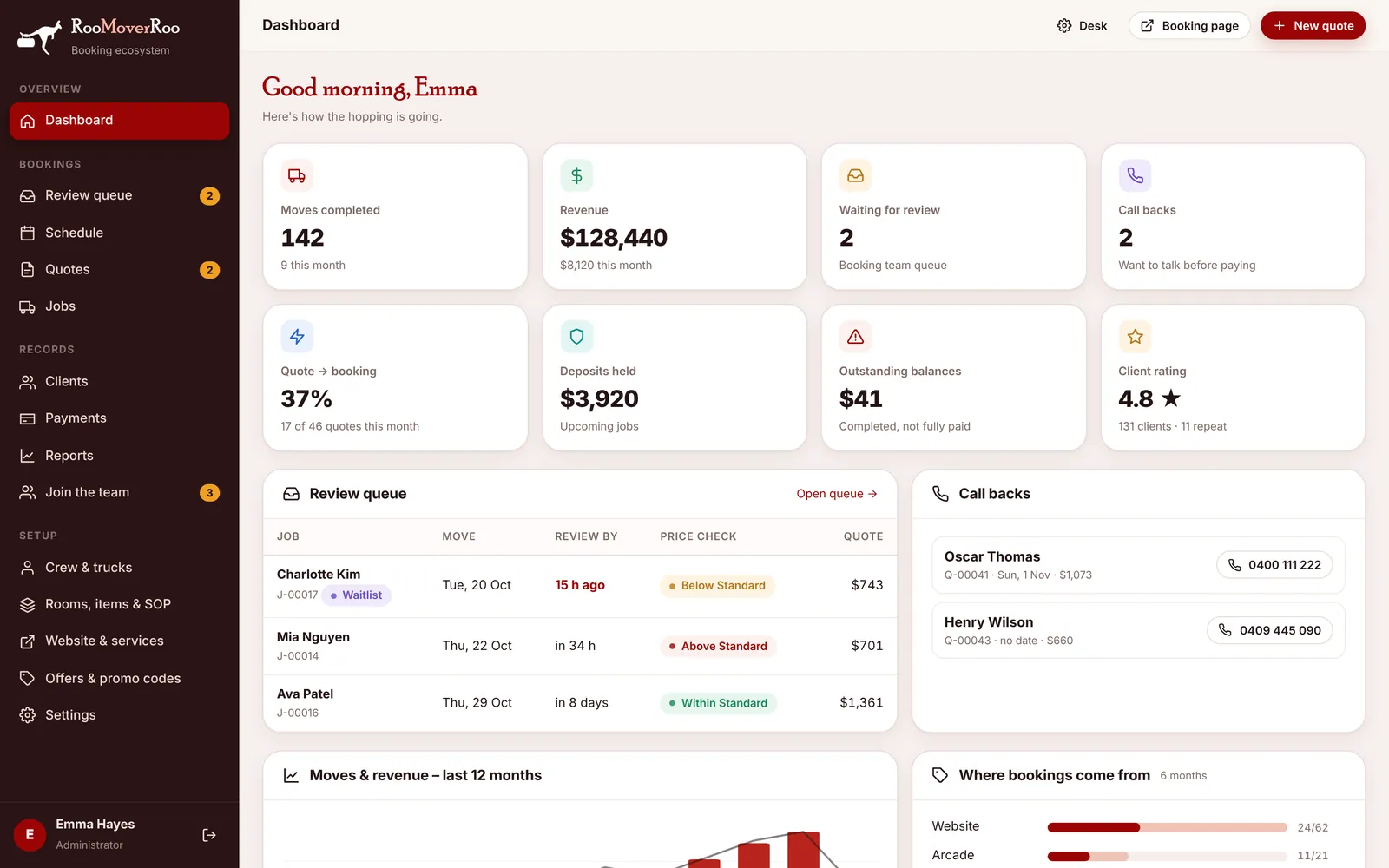
Every staff screen has the same layout: the menu down the left, a top bar with the page title and quick buttons, and the page itself. On a phone the menu folds away behind a button.
The menu#
The menu is grouped by what you’re doing. Small red numbers show things waiting for you.
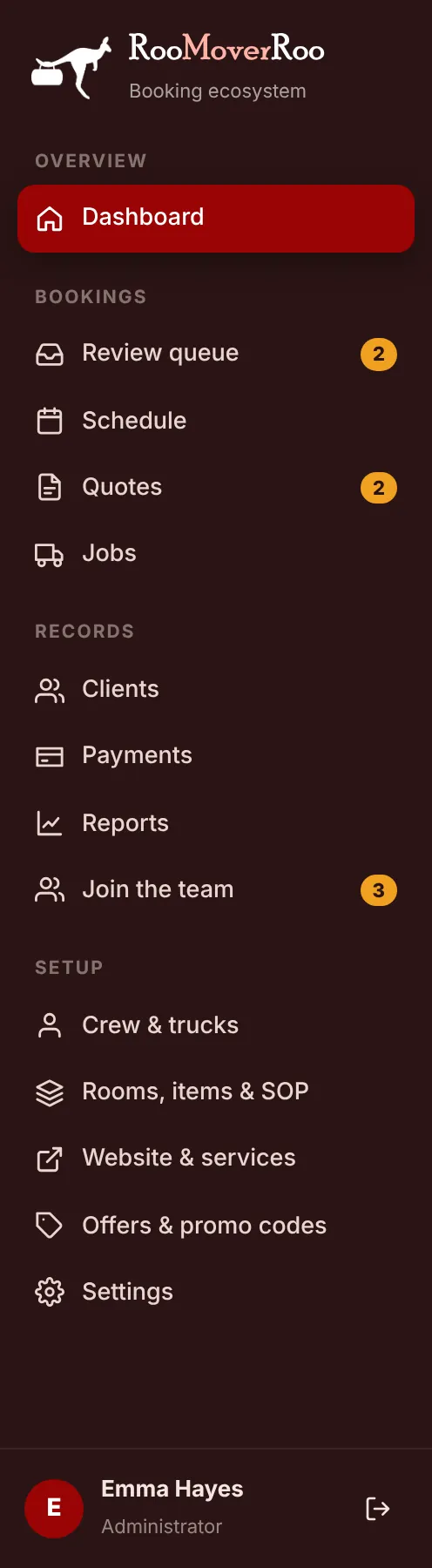
| Group | Pages |
|---|---|
| Overview | Dashboard |
| Bookings | Review queue (badge: jobs waiting for review), Schedule, Quotes (badge: quotes awaiting a call), Jobs |
| Records | Clients, Payments, Reports, Join the team (badge: new applicants) |
| Setup | Crew & trucks, Rooms, items & SOP, Website & services, Offers & promo codes, Settings |
At the bottom of the menu you’ll see your name and role, and the log-out button.
The top bar#

- Desk opens Frappe Desk. Only System Managers see it.
- Booking page opens the public booking form in a new tab, exactly as clients see it.
- + New quote starts a quote for a client on the phone. See Creating a quote for a client.
Lists#
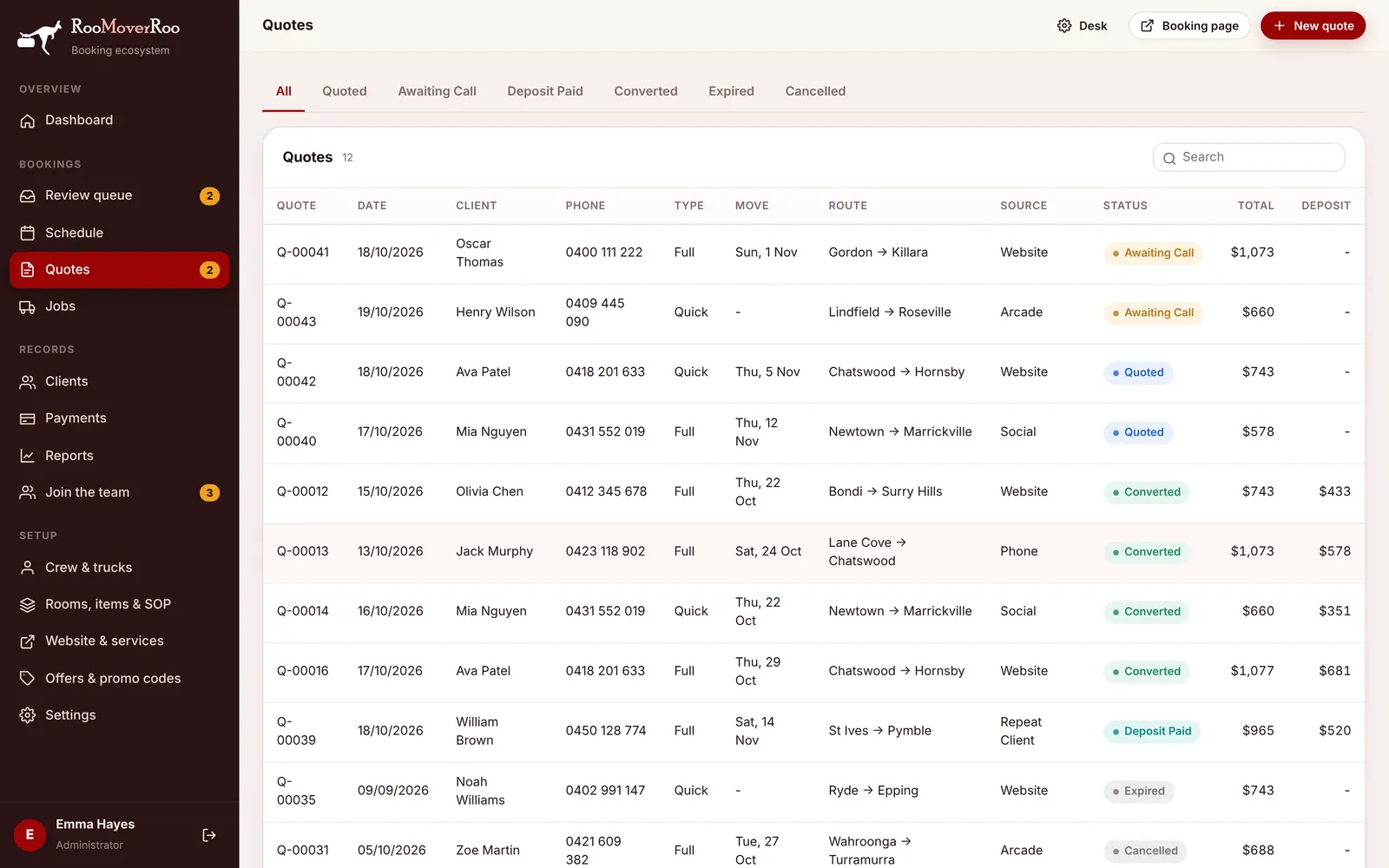
Quotes, Jobs, Clients, Payments and the setup lists all work the same way:
- Tabs across the top filter by status, for example Awaiting Call on Quotes or Unpaid on Jobs.
- Search finds records by name, number, phone, email or suburb.
- Click a row to open it. On setup lists this opens an edit window.
- Add buttons such as Add removalist or New code sit above the list.
Saving changes#
On pages with lots of fields, such as a job’s job sheet or Settings, a dark “Unsaved changes” bar appears at the bottom as soon as you change something. Choose the save button on it (Save job sheet, Save settings or Save) to keep your changes, or Discard to undo them. If you leave without saving, your changes are lost.
After most actions a short message appears in the corner to confirm what happened, for example “Job confirmed – client notified”. Errors appear the same way, in red.
Status colours#
Statuses appear as coloured pills: green for done or good (Confirmed, Paid), amber for waiting on someone (Pending Review, Awaiting Call) and red or grey for stopped (Cancelled, Expired). See Statuses explained.