Review queue
Check every new booking before its review deadline, then confirm it or waitlist it.
Every booking is reviewed by the office before the crew is booked. When a client pays a deposit, their quote becomes a job and lands here. You check the price, the access and the crew you’ll need, and then approve it. The Review queue is at /roo/review.
Each job has a review deadline. By default that’s 8 pm two days before the move, so a Saturday move must be reviewed by Thursday night. The employment agency also needs 24 hours’ notice for any extra staff. Both are set in Settings.
The two tabs#
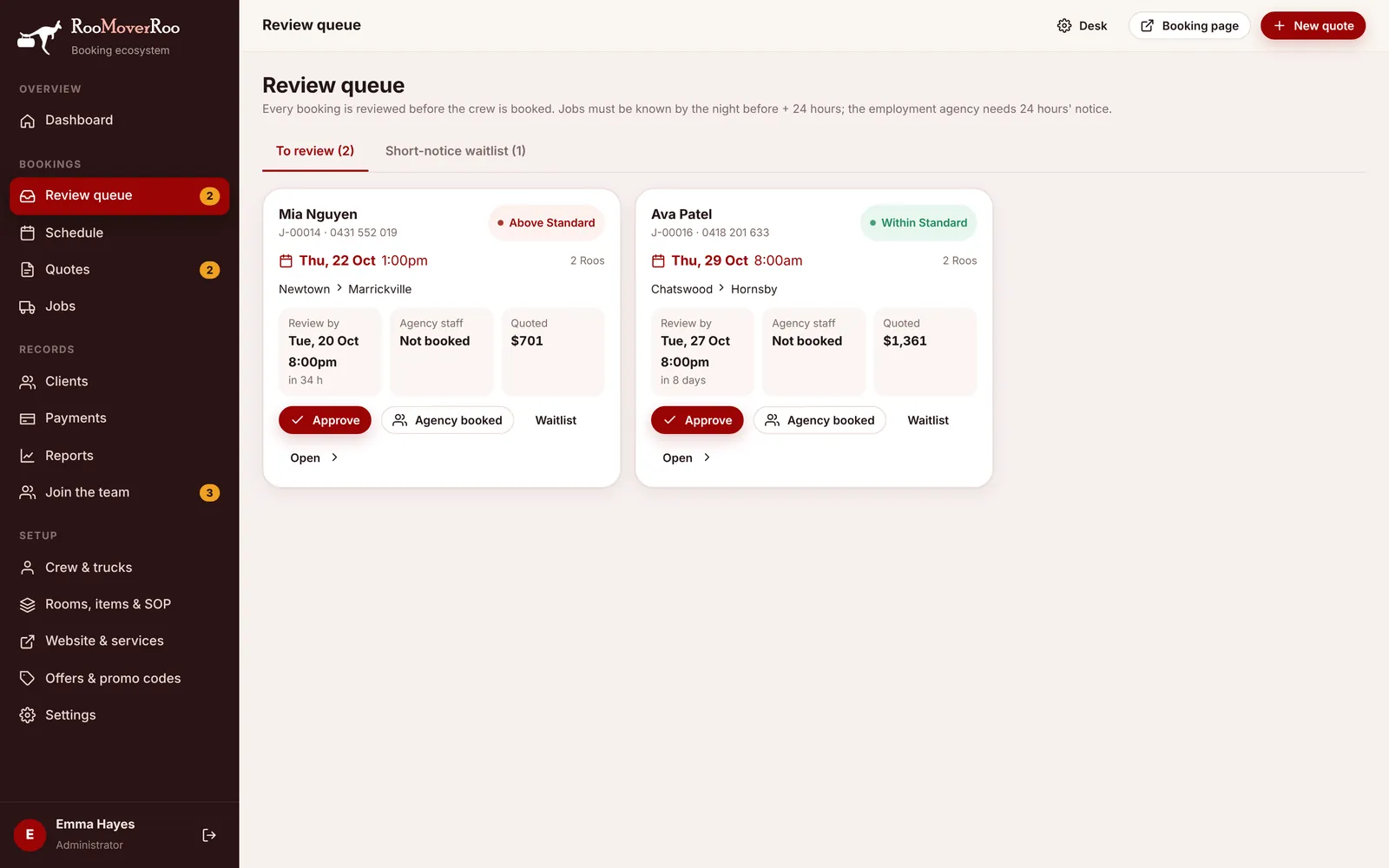
- To review lists jobs that are Pending Review, soonest deadline first.
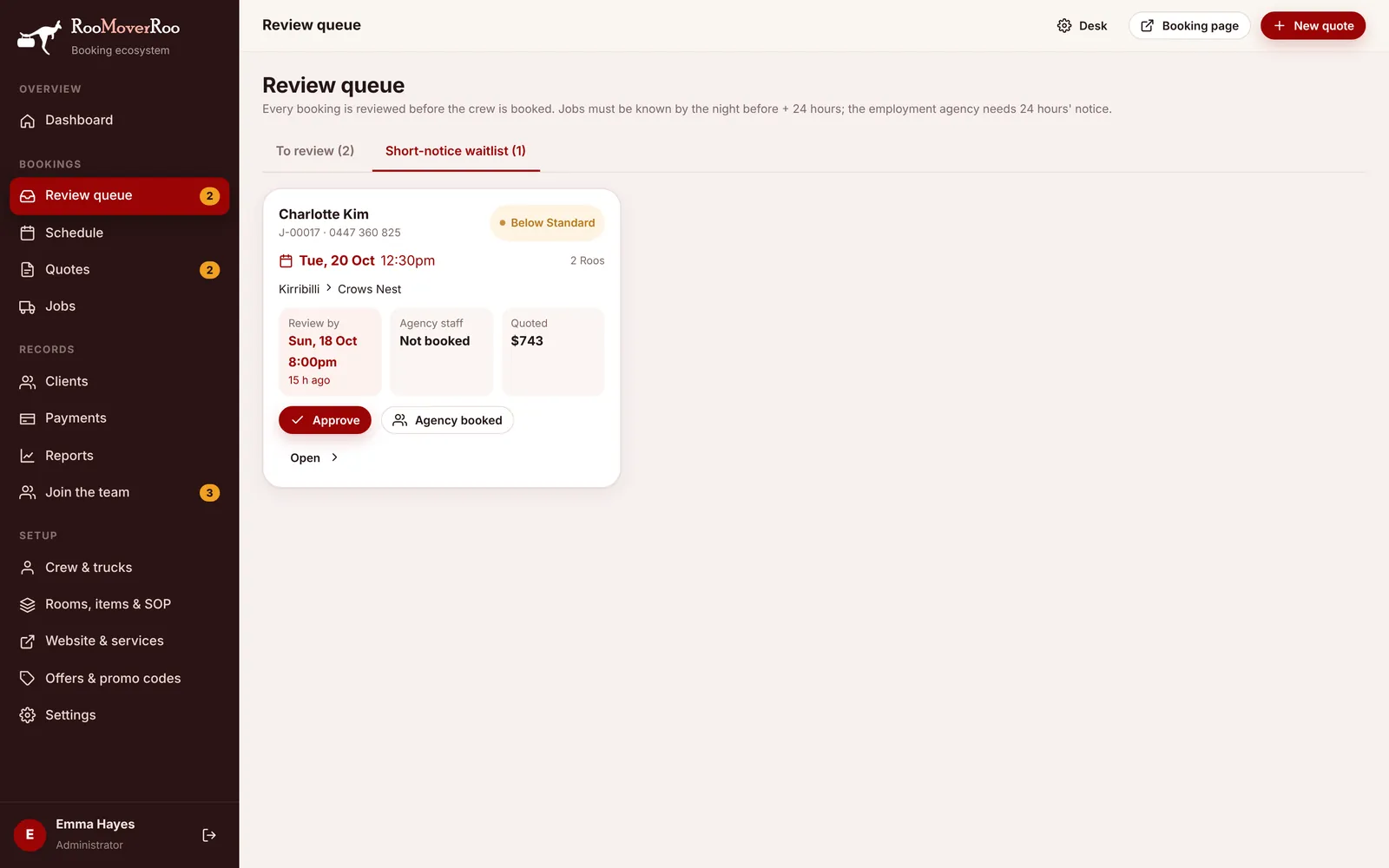
- Short-notice waitlist lists jobs that are Waitlist. A booking made after its review deadline goes here automatically instead of being refused. The client has paid a deposit and been told you’ll confirm if a crew is free, for example after a cancellation.
What’s on each card#
Each card shows the client, job number and phone, the move date and start time, the number of Roos, the suburbs, and three boxes: Review by (red once overdue, with how long is left), Agency staff (booked or not) and Quoted (the quoted total).
The coloured pill is the price check. The app compares the quoted hours with your price standards for that number of bedrooms and Roos:
- Within Standard: the hours are inside the normal range.
- Above Standard: more hours than usual. Check for extra items, stairs or a long drive.
- Below Standard: fewer hours than usual. Check nothing has been left off.
- Not Checked: there’s no standard for that size of move.
Review and confirm a job#
- Open the job with Open › if you want to look closer. The job record shows the rooms and items, the addresses and access, and the other jobs on the same day.
- Book agency staff if needed and press Agency booked once they’re confirmed. Pressing it again (Unmark agency) undoes it.
- Press Approve. The job becomes Confirmed, the client is emailed “Your move is confirmed” with your moving tips, and the job is added to the Outlook calendar if that’s connected.
When a confirmed job has all its crew confirmed and agency staff booked, its status moves on to Crew Booked by itself.
Waitlist a job#
If you can’t confirm a job yet, press Waitlist. It moves to the Short-notice waitlist tab as Waitlist. You can still approve it from there later. If a crew never frees up, cancel the job from its record so the deposit is refunded. See Cancellations and refunds.