
Creating a quote for a client
Use the booking form on the client's behalf for phone and walk-in enquiries.
When a client rings, emails or walks in, you can make their quote for them with the same booking form they’d use online. Press + New quote in the top bar of any screen, or go to /roo/quotes/new. The price updates live as you fill it in, exactly as it does for clients.
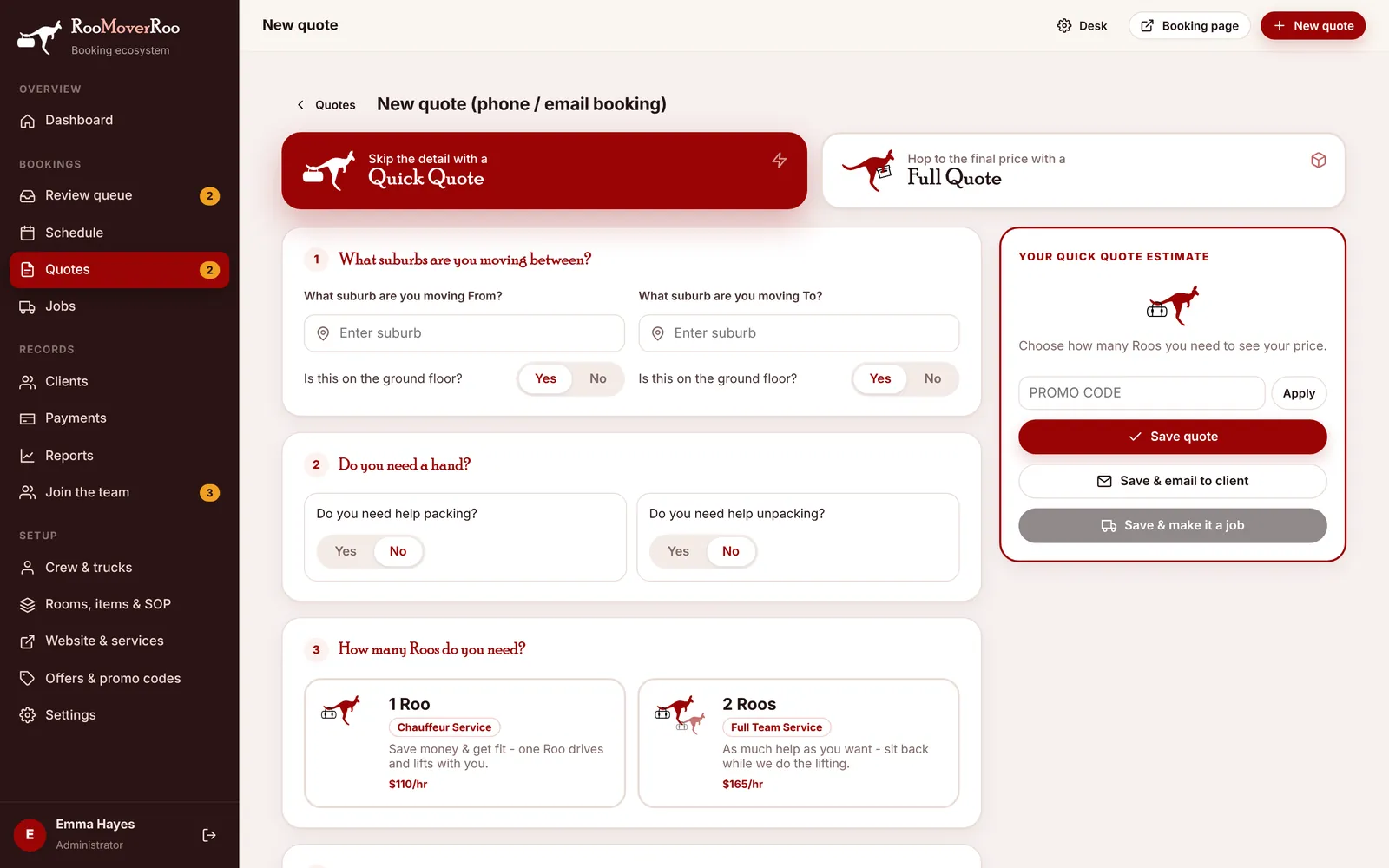
How it differs from the client’s form#
- There’s a Lead source box so you can record how the client found you. It starts on Phone; the other choices are Email, Website, Arcade, Social, Referral, Repeat Client and Other. Sources feed the dashboard and reports.
- Instead of paying a deposit, you get three save buttons (see below).
Everything else, the Quick Quote and Full Quote switch, rooms and sizes, items, access, packing, extras, the date picker and promo codes, works as described in The booking form.
Make a quote over the phone#
- Press + New quote.
- Choose Quick Quote or Full Quote. Use Full Quote if the client can tell you their items. It gives a fixed price.
- Add the rooms and sizes, then the items if it’s a Full Quote.
- Enter both addresses, including stairs or lift, so travel and access are priced.
- Pick a date and start time if they know it. The calendar shows bundle days, short-notice days and fully booked days.
- Enter the client’s details and set the Lead source.
- Save with one of the buttons below.
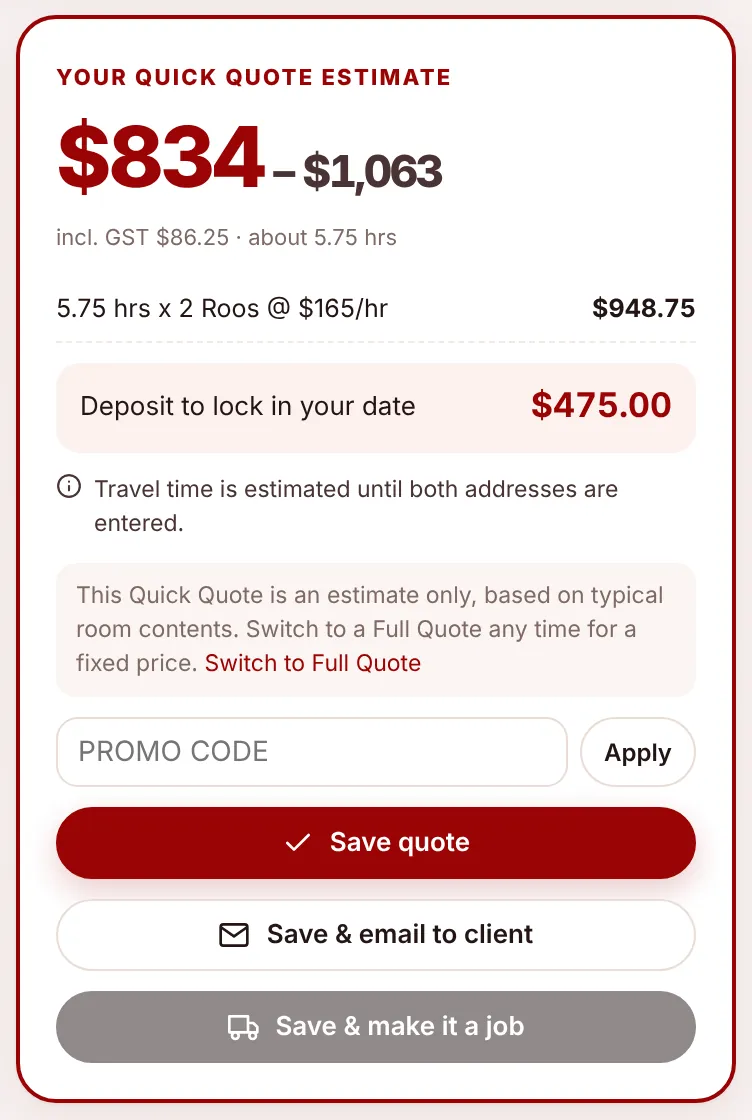
The three save buttons#
| Button | What happens |
|---|---|
| Save quote | Saves it as Quoted. Nothing is sent. |
| Save & email to client | Saves it and emails the client the quote, the PDF booking sheet and a link to view and pay the deposit. |
| Save & make it a job | Saves it and turns it straight into a job for review. Only available once a move date is chosen. |
The quote is valid for 30 days by default. You’ll find it afterwards in Quotes.
Editing a quote#
Open the quote and press Edit to change it in the same form. The price is recalculated when you save. A quote that has already become a job can’t be edited this way. Change the job’s Job sheet tab instead.