The crew job sheet
Open the job on your phone and work through it from arrival to finish.
The job sheet is the crew’s page for one move. It opens on your phone from a private link, so there’s nothing to sign in to. The office’s emails carry the link two days before the move, with a PDF copy of the sheet attached.
Keep the job sheet open all day. Everything you tap is saved straight away and the office sees it.
Opening the job sheet#
You can get to it three ways:
- The Job sheet email the office sends two days before the move. Tap Open job sheet.
- The start-of-day sheet, which lists today’s jobs. Tap a job to open its sheet.
- If you have a crew login, the My jobs page at
/roolists your upcoming jobs.
The office can also copy the link from the job record and send it to you.
What’s at the top#
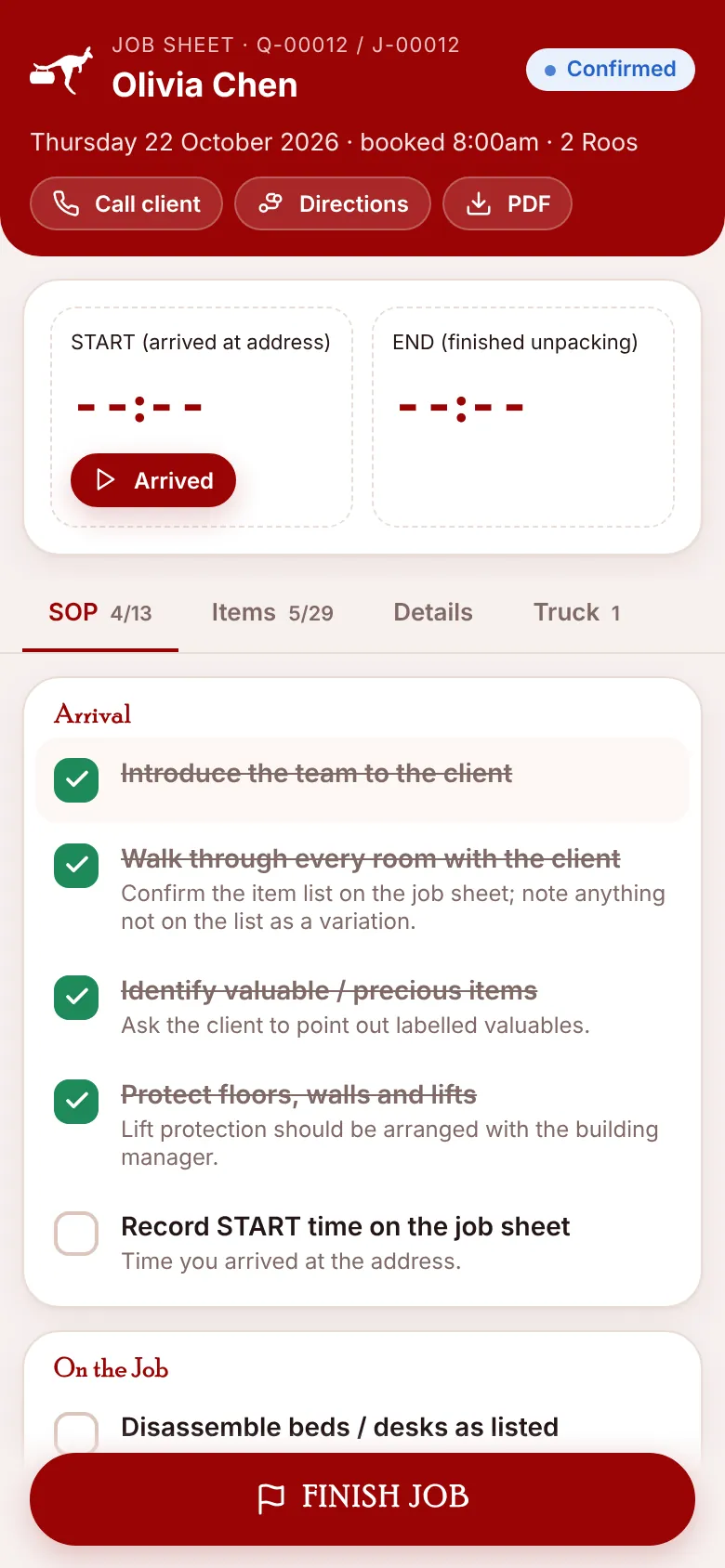
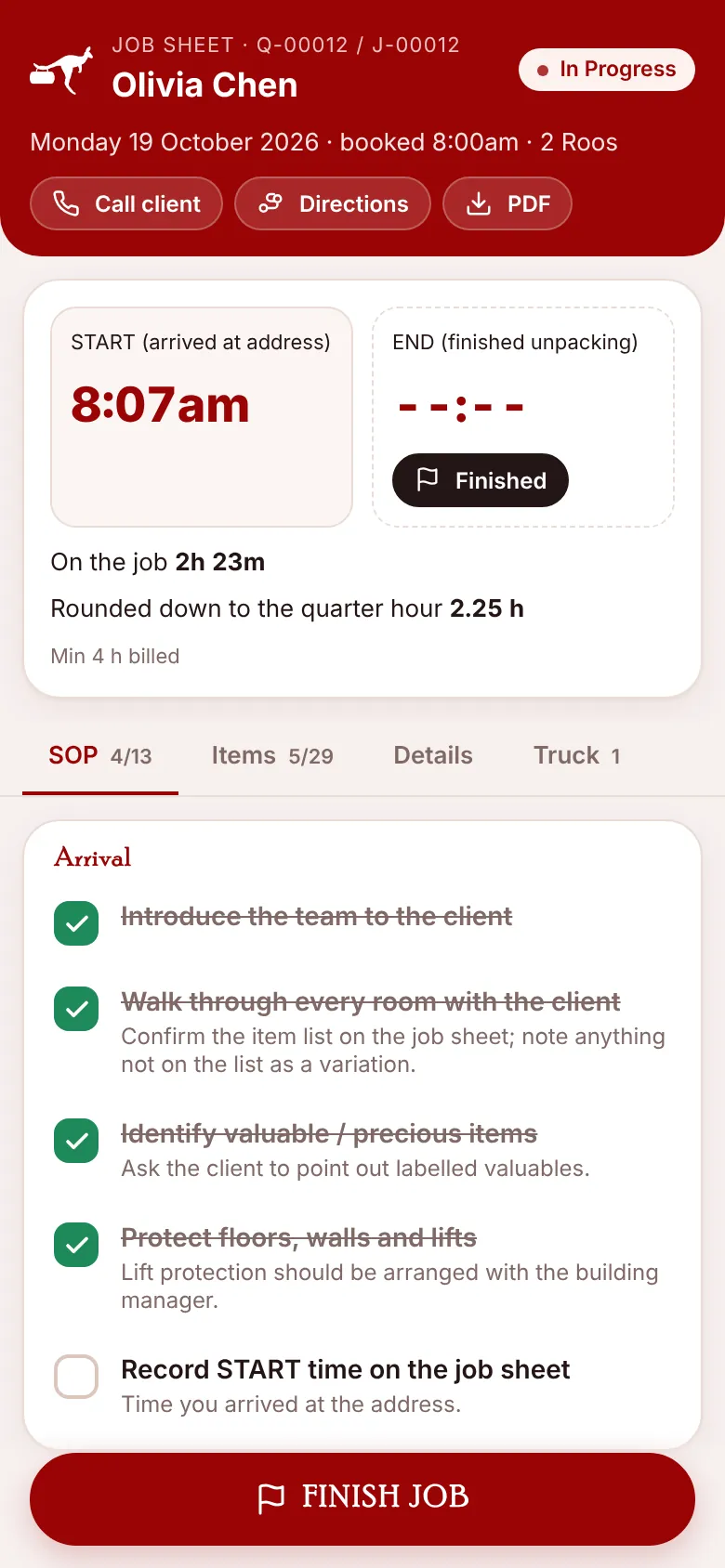
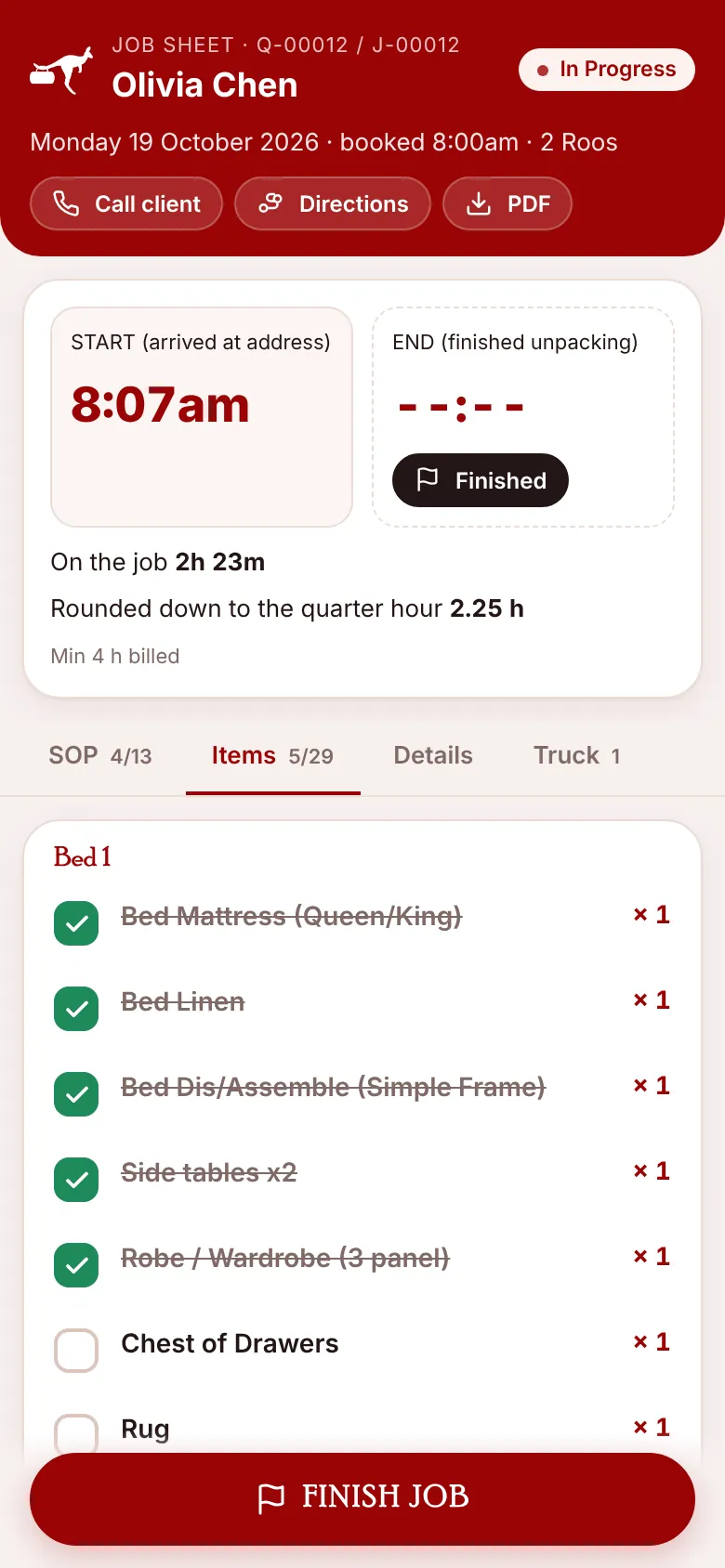
The red header shows the quote and job numbers, the client’s name, the job status, the date, the booked start time and how many Roos. Three buttons sit underneath:
- Call client rings the client’s phone.
- Directions opens Google Maps with the route.
- PDF downloads the printable job sheet.
The clock#
Two boxes record your time on the job:
- START (arrived at address). Press Arrived when you get there. The job changes to In Progress.
- END (finished unpacking). Press Finished when the last item is in place.
While the clock runs, the sheet shows how long you’ve been on the job, the time rounded down to the quarter hour and a reminder that the minimum is 4 hours.
The four tabs#
| Tab | What it’s for |
|---|---|
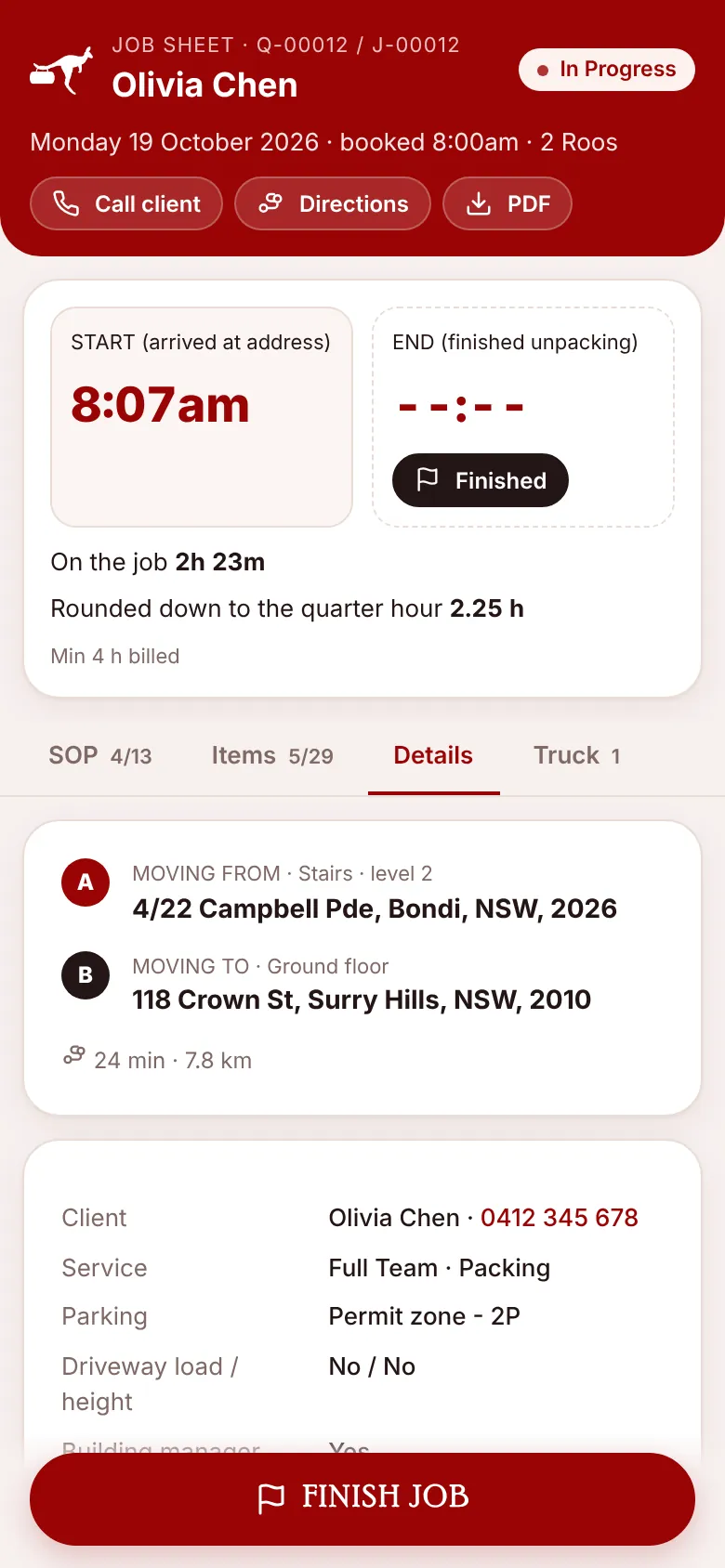
| SOP | The standard operating procedure for this job, in three groups: Arrival, On the Job and Finish Job. Tap a step to tick it. The tab shows how many are done, for example 4/13. |
| Items | Everything on the quote, grouped by room. Tap each item as it goes on the truck. See Items and truck trips. |
| Details | Both addresses with stairs or lift and level, travel, the client’s details, the service, parking, load and height limits, building manager, lift protection, valuables and notes. |
| Truck | The truck trips for this job, and a button to add one when the truck is full. |
Working through the SOP#
- Arrival. Introduce the team, walk through every room with the client, find valuable or precious items and protect floors, walls and lifts. Tick each step as you do it.
- On the Job. Tick the steps as you load, drive and unload.
- Finish Job. Tick the last checks before you press FINISH JOB.
The office chooses the steps in SOP checklist steps, so your list may differ from the screenshots. Steps marked required are the ones the office expects every time.
If something’s wrong#
- “This job was cancelled” means the office cancelled it. Call the office.
- “This job is already finished” means FINISH JOB has been pressed. Only the office can change it now.
- If the link doesn’t open, ask the office to send it again.