Items and truck trips
Tick items as they're loaded, move each truck trip from Planned to Delivered, and add a trip when the truck is full.
The Items and Truck tabs on the job sheet help you keep track of the load. Ticking items shows the office what’s been moved. Truck trips show when the truck is full and needs another run.
Items#
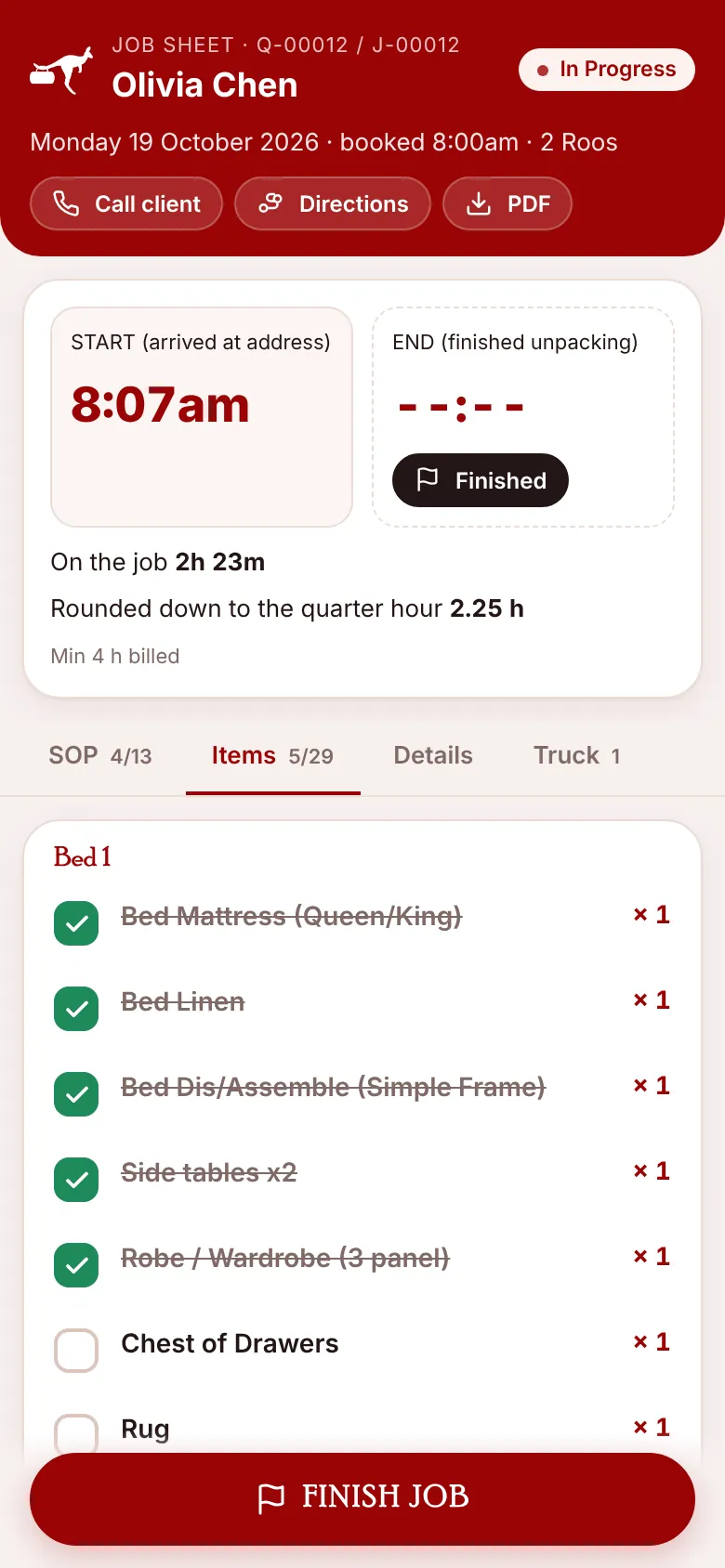
The Items tab lists everything on the quote, grouped by room (Bed 1, Kitchen 1 and so on). The tab label shows how many are loaded, for example 5/29.
- Open the Items tab.
- As each item goes on the truck, tap it. It’s ticked off and the count goes up.
- Tapped the wrong one? Tap it again to untick it.
Truck trips#
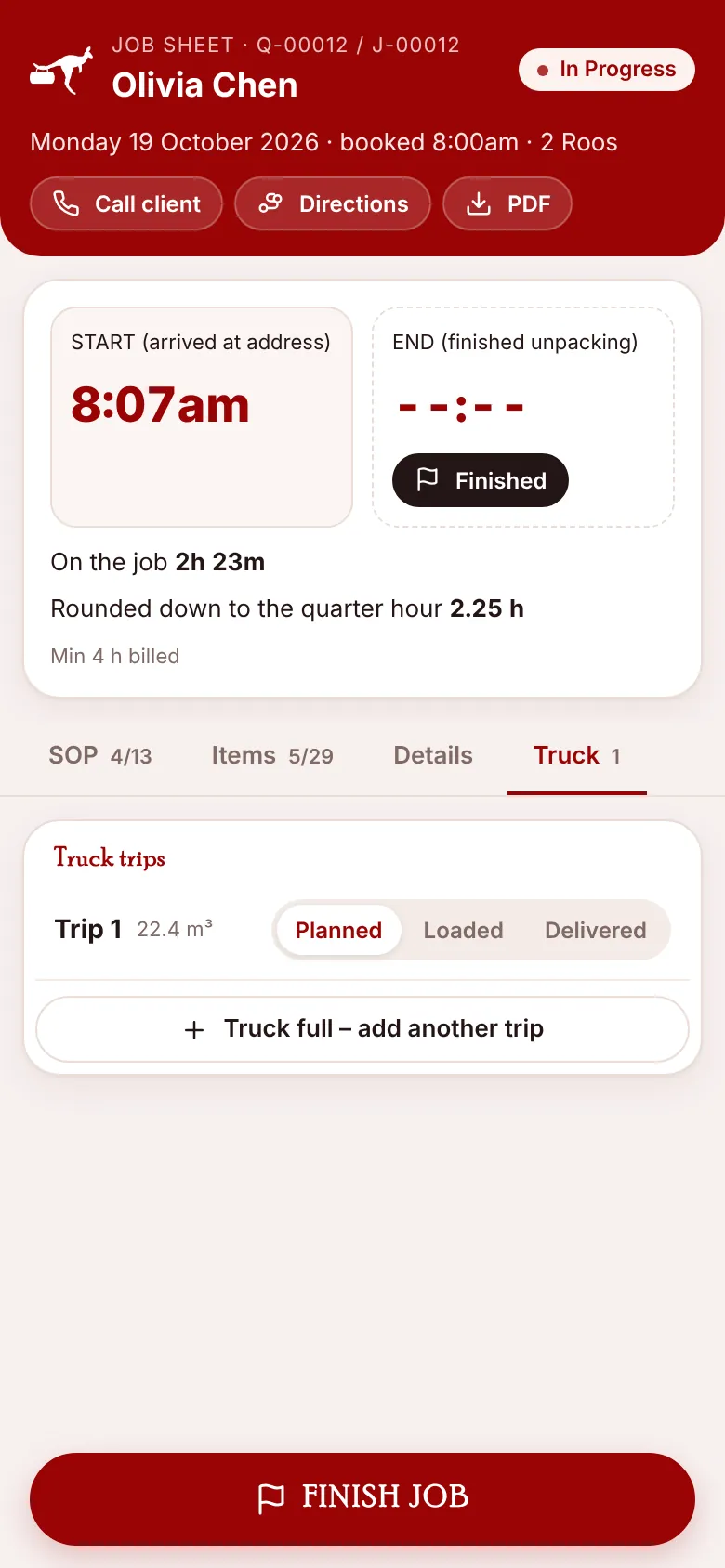
The quote works out how many truck loads the job needs from the volume of the items. Each trip is listed on the Truck tab with its volume in cubic metres and one of three statuses:
| Status | Means |
|---|---|
| Planned | Not started yet. |
| Loaded | The truck is loaded and on its way. |
| Delivered | Everything from this trip is unloaded at the new address. |
Tap the status buttons to move each trip along. Each change is recorded in the job’s activity log.
The truck is full#
If everything won’t fit, press Truck full – add another trip. A new trip is added as Planned, with a note that the crew added it. The office is told when the job finishes, so they can look at the time and the quote.