Offers and promo codes
Create codes, limit their use and show them on the website.
Offers & promo codes is where you create discount codes for flyers, arcade stands, social posts and returning clients. A code can also pop up on the booking form, and appear as a Celebration Offer card on the website. After every finished move the app makes a personal thank-you code for the client, and those appear here too.
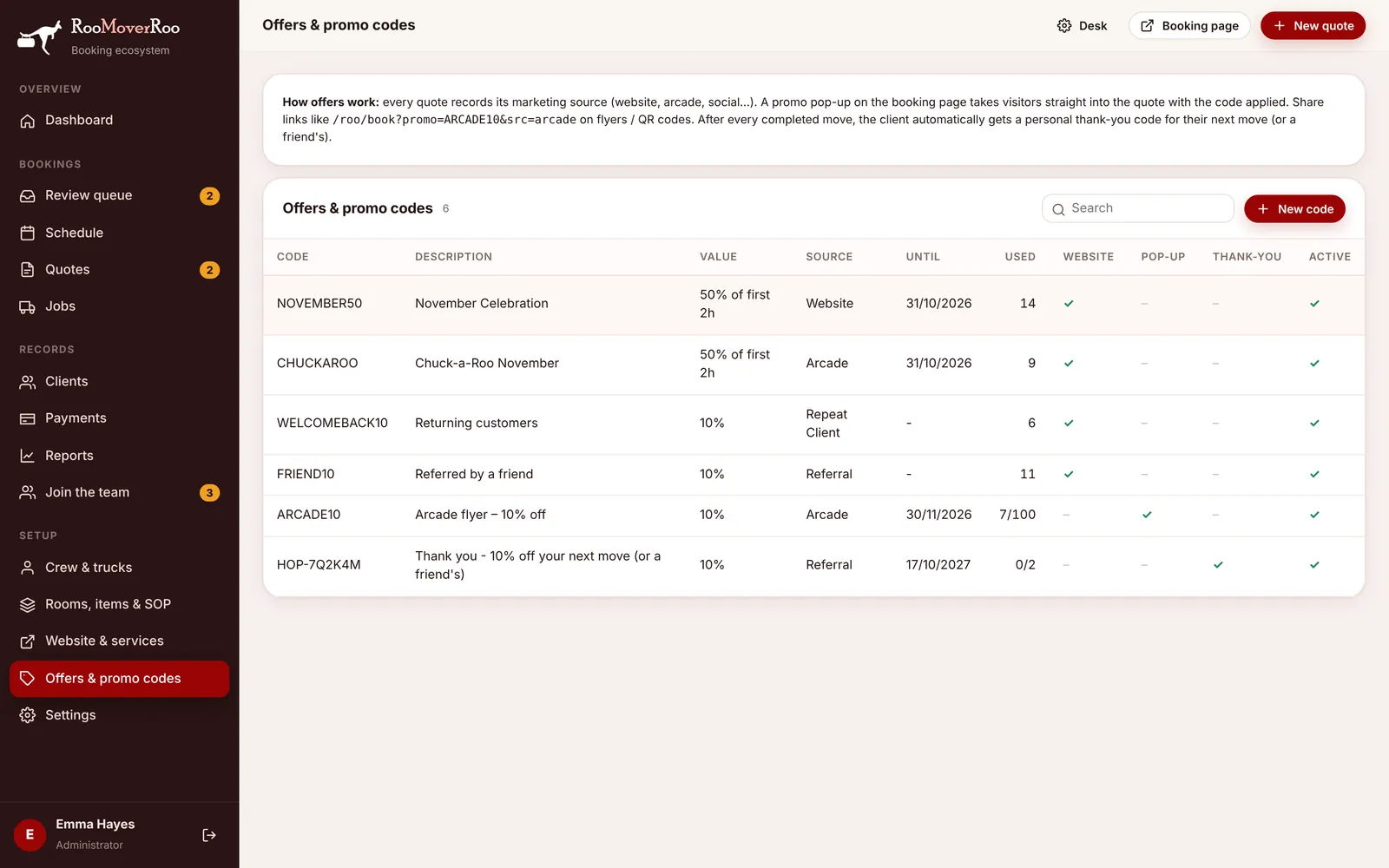
The table shows Code, Description, Value, Source, Until, Used (uses so far, out of the maximum if there is one), and ticks for Website, Pop-up, Thank-you and Active. Choose New code to add one, or click a row to edit it. Only Roo Admin users can save or delete codes.
Creating a code#
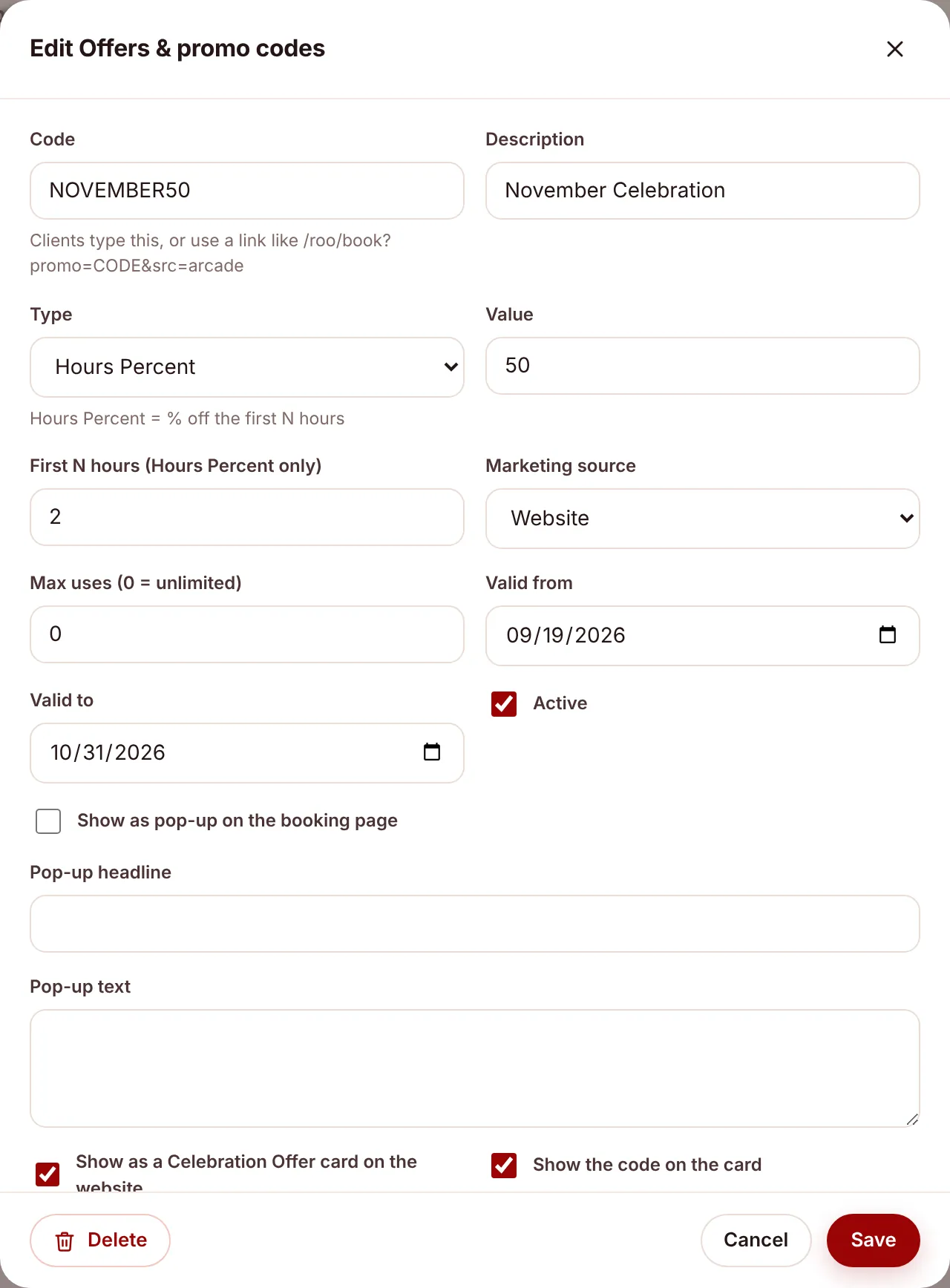
- Choose New code.
- Type the Code clients will enter, for example ARCADE10. It’s saved in capitals, clients can type it in any case, and it can’t be changed after saving.
- Give it a Description the office will recognise.
- Pick the Type and Value (see below). For Hours Percent, also fill in First N hours (Hours Percent only).
- Set the Marketing source so you can see in Reports where bookings came from.
- Optional limits: Max uses (0 = unlimited), Valid from and Valid to.
- Keep Active ticked, and save.
The three types of discount#
Discounts come off the moving price after any bundle-day saving. The examples use a 5-hour job with two Roos at $165 an hour, so $825 before discounts.
| Type | What it takes off | Example |
|---|---|---|
| Percent | A percentage of the price. | Value 10 takes $82.50 off, leaving $742.50. |
| Fixed Amount | A dollar amount, never more than the price. | Value 50 takes $50 off, leaving $775. |
| Hours Percent | A percentage of the first N hours of labour. | Value 50 with First N hours 2 takes 50% of 2 hours x $165 = $165 off, leaving $660. |
When a code is accepted#
When a client enters a code on the booking form the app checks it and tells them why if it can’t be used:
| Check | Message the client sees |
|---|---|
| The code exists and is Active | That code isn’t valid |
| Today is on or after Valid from | That code isn’t active yet |
| Today is on or before Valid to | That code has expired |
| Uses are below Max uses | That code has been fully used |
A use is counted when a quote with the code becomes a job, which happens when its deposit is paid.
Links for flyers and QR codes#
Instead of asking people to type a code, give them a link that opens the booking form with the code already applied and the marketing source recorded:
https://your-site/roo/book?promo=ARCADE10&src=arcadeEvery quote records where it came from, so the dashboard and Reports can show which flyers and stands are bringing in bookings.
Pop-up on the booking form#
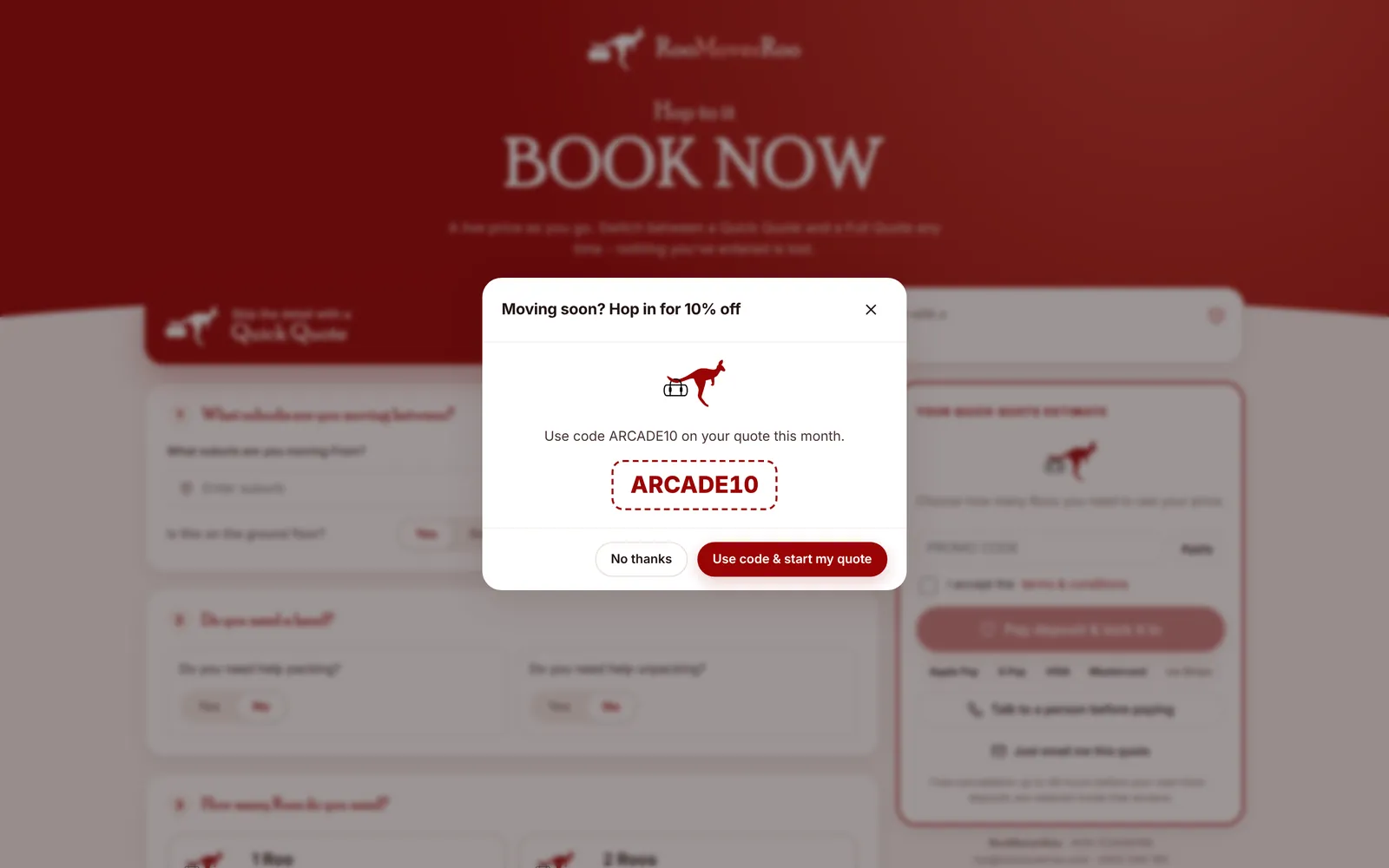
Tick Show as pop-up on the booking page and fill in Pop-up headline and Pop-up text. Visitors to the booking form see the offer and can start their quote with the code applied. Pop-ups only show while the code is active and before its Valid to date.
Celebration Offer cards on the website#
Tick Show as a Celebration Offer card on the website to put the code on the RooMoverRoo WordPress site. The card uses these fields:
| Field | On the card |
|---|---|
| Card title (e.g. 50% Off) | The big headline on the coloured stub. |
| Card subtitle (e.g. November Celebration) | The heading in the body of the card. |
| Card text | The description. |
| Small print | Terms under the button. If blank, the card says “*Terms and Conditions Apply.” |
| Button label | The button text. If blank, “Claim offer”. |
| Show the code on the card | Untick for codes you hand out in person, such as a competition prize. |
| Card order | Lower numbers show first. |
A card only shows while its code is active, inside its valid dates and not fully used. The card’s button opens the booking form with the code applied. Saving a code refreshes what the website receives straight away. See Offers on the website.
Thank-you codes#
When a job is finished, the app creates a personal code for the client, named HOP- followed by six letters and numbers, for example HOP-7Q2K4M. It’s sent in the “Job complete” email and shown on the client’s feedback page, so they can use it for their next move or pass it to a friend.
- It’s worth the Thank-you discount for next move % in Settings, 10% by default. Set that to 0 to stop issuing them.
- It can be used twice and is valid for 365 days.
- It has the source Referral and shows a tick in the Thank-you column.
What comes installed#
The app starts with four website offers: NOVEMBER50 (50% off the first 2 hours), CHUCKAROO (the same, for the arcade competition, code hidden on the card), WELCOMEBACK10 (10% for returning clients) and FRIEND10 (10% for referrals). Change or deactivate them to suit.