Xero accounting
Connect Xero so each finished job becomes an invoice with its payments applied.
With Xero connected, every job becomes an invoice in Xero when the crew press FINISH JOB, and the deposit and balance payments are applied to it. You don’t need to retype anything.
Connect Xero#
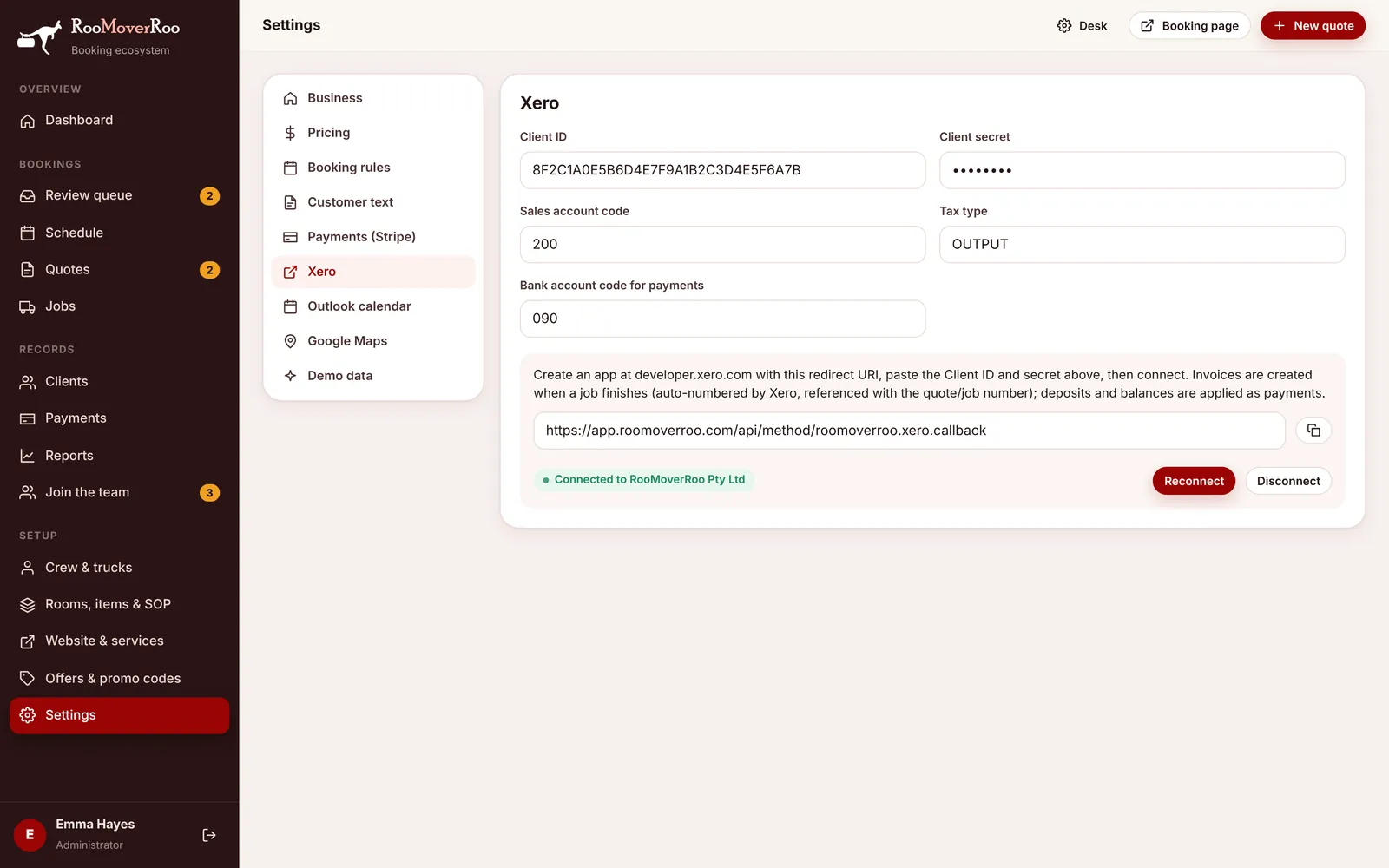
- Create a Xero app. Sign in at developer.xero.com, create a new app of type “Web app”, and use the redirect URI shown on the Xero tab in
/roo/settings. It ends in/api/method/roomoverroo.xero.callback. - Copy the keys. Paste the Client ID and Client secret from your Xero app into the tab.
- Check the account codes. Sales account code (default 200), Tax type (default OUTPUT, which is GST on income) and Bank account code for payments (default 090) must match accounts in your Xero chart of accounts.
- Connect. Choose Connect to Xero, sign in to Xero and pick your organisation. You come back to Settings and the tab shows “Connected to” and your organisation’s name.
What goes into Xero#
| When | What |
|---|---|
| FINISH JOB | An authorised sales invoice, GST inclusive, dated the move date, with the reference “quote number / job number”. Lines: the billed hours at the hourly rate, plus cleaning, tolls, additional charges and discounts when there are any. |
| Straight after | Each successful payment on the job (deposit, balance) is applied to the invoice against your payments bank account. |
| Later payments | A payment recorded after the invoice exists is applied to it too. |
The invoice number Xero gives is saved on the job record. If an invoice can’t be created (for example the connection has expired), the job still completes and the error is written to Frappe’s Error Log so you can fix the connection and try again.